April 14th, 2026
Improved
Upgraded

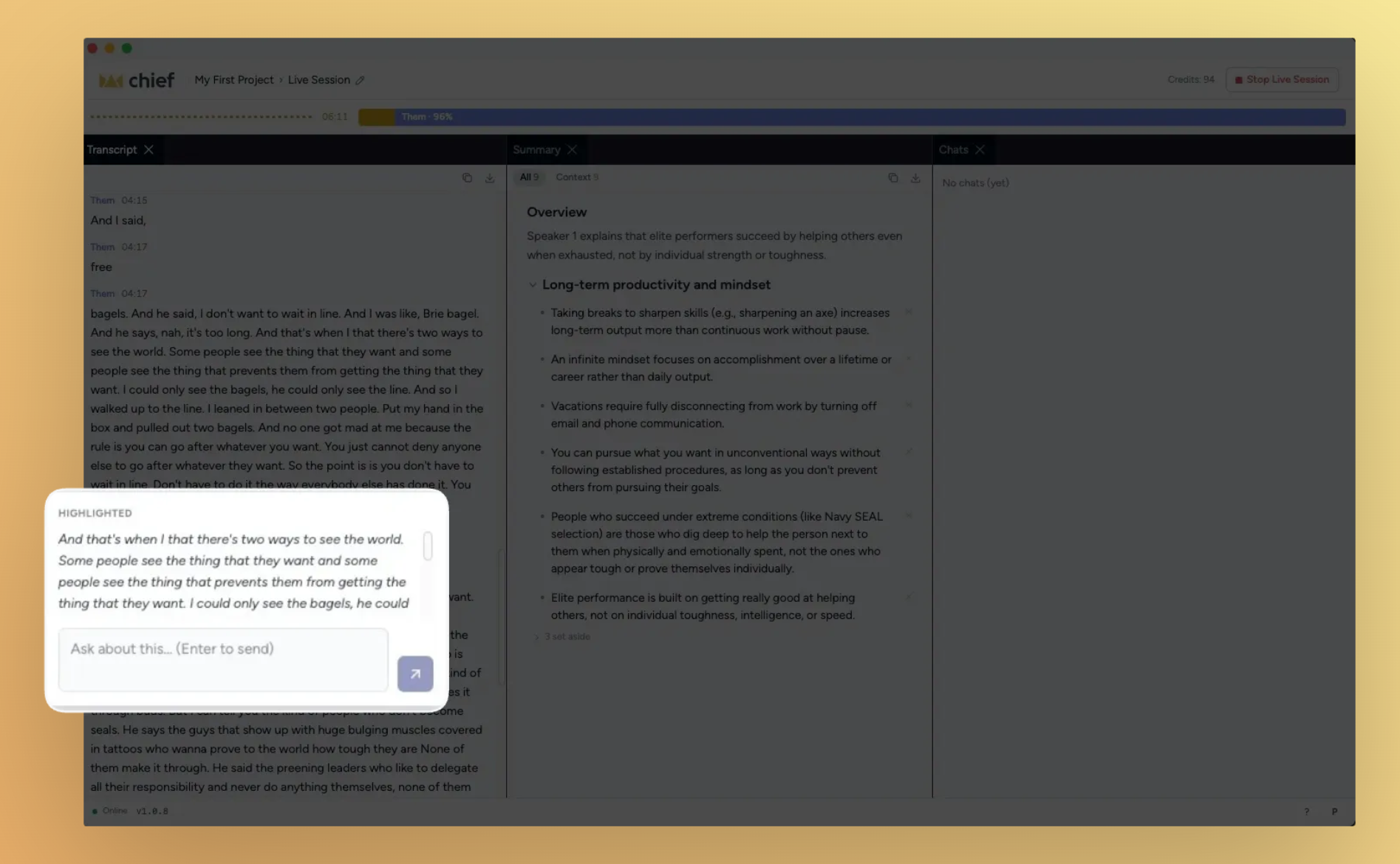
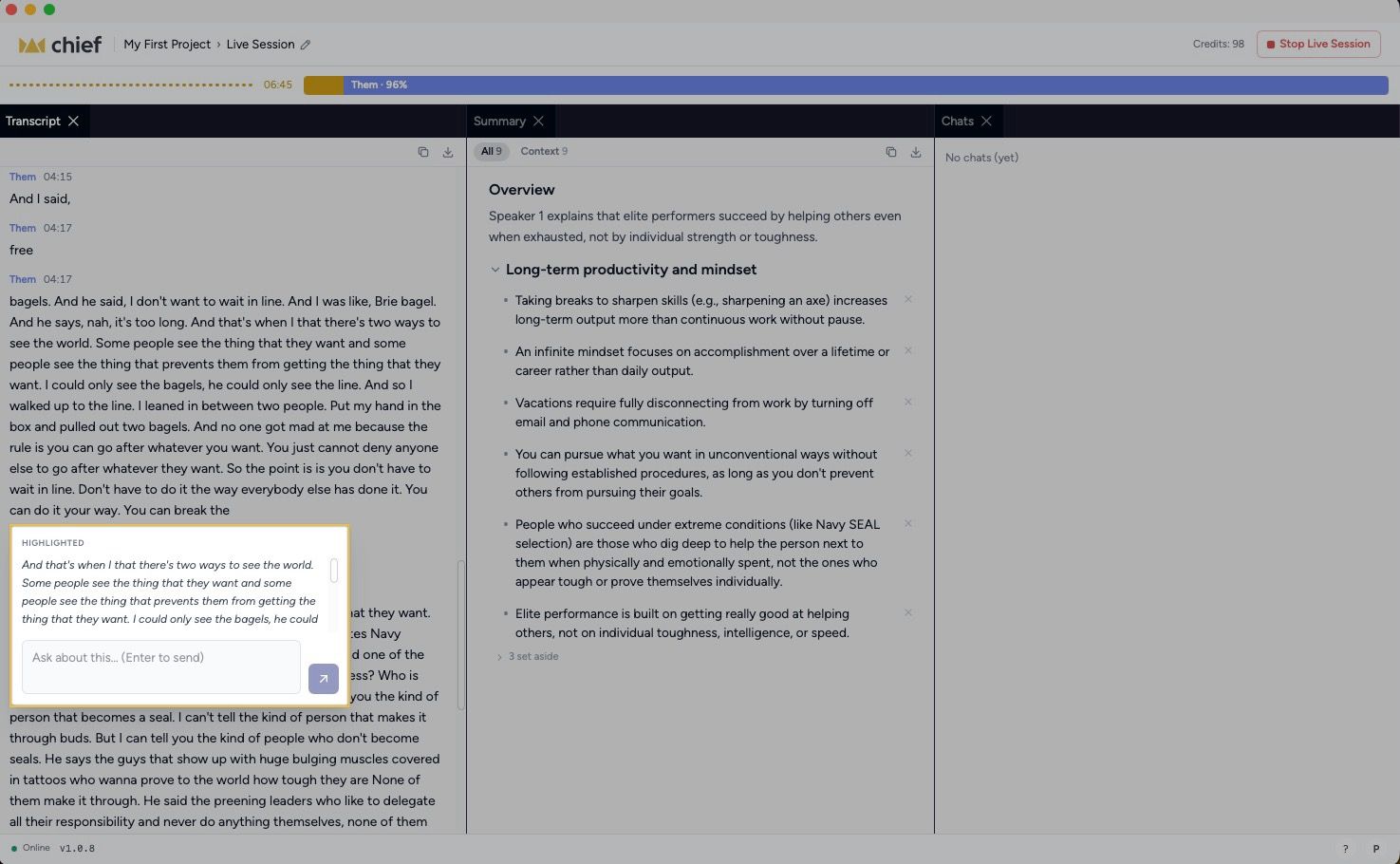
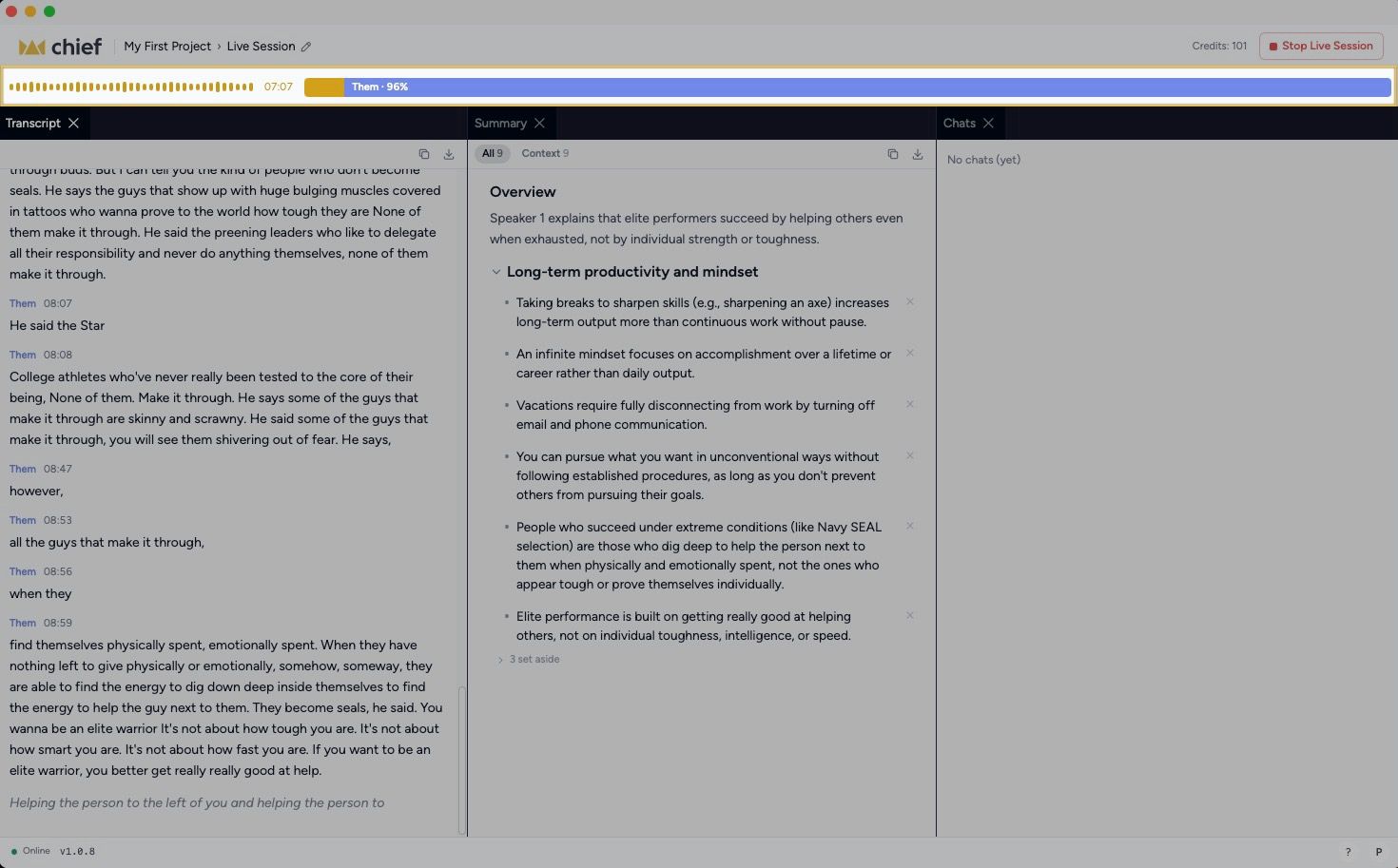
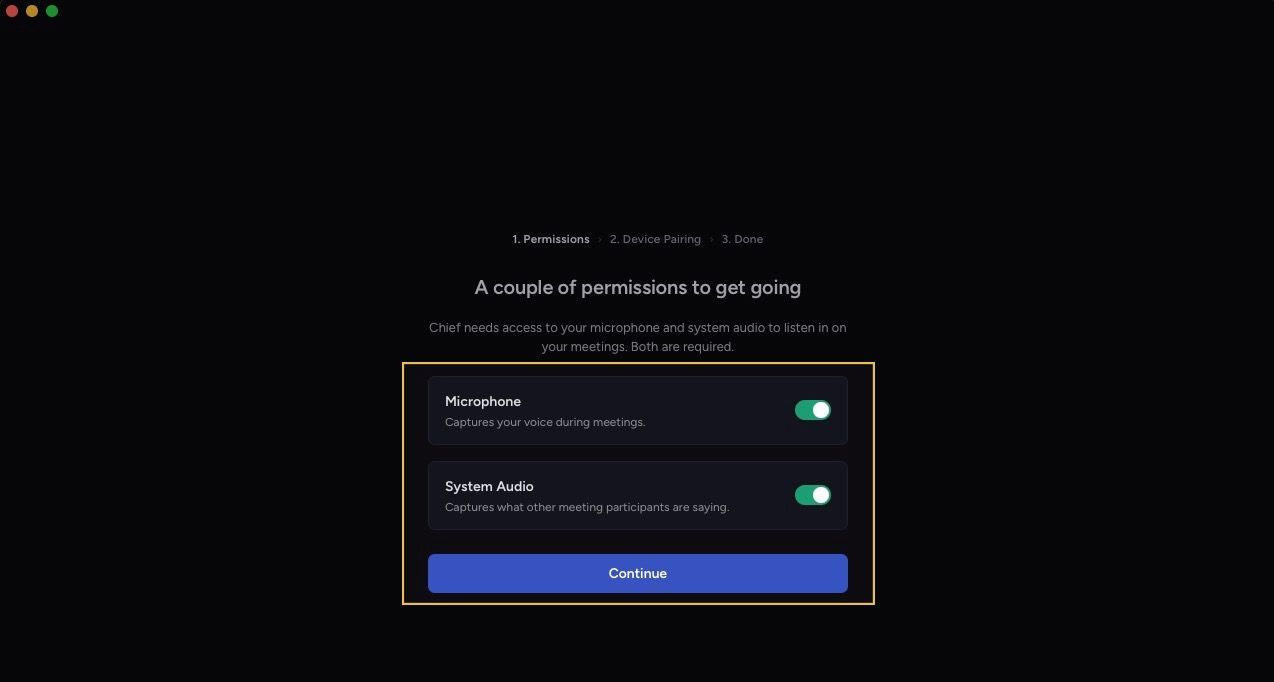
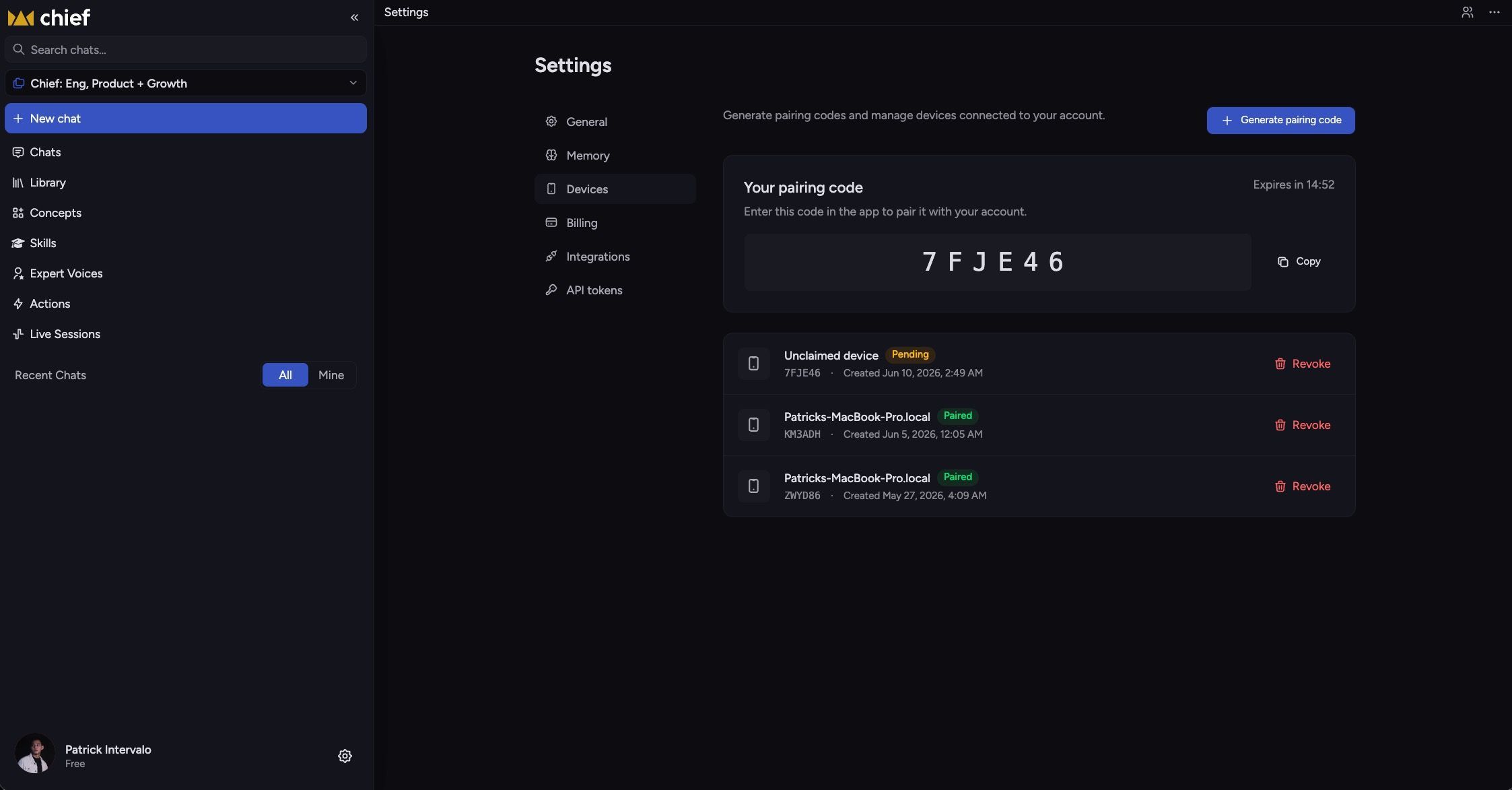
Our product has evolved into something more powerful than a knowledge platform. It's become an operating system for people who run things. That shift in behavior deserved a name change. Starting next week, we will be rebranding Storytell as Chief (think Chief of Staff).

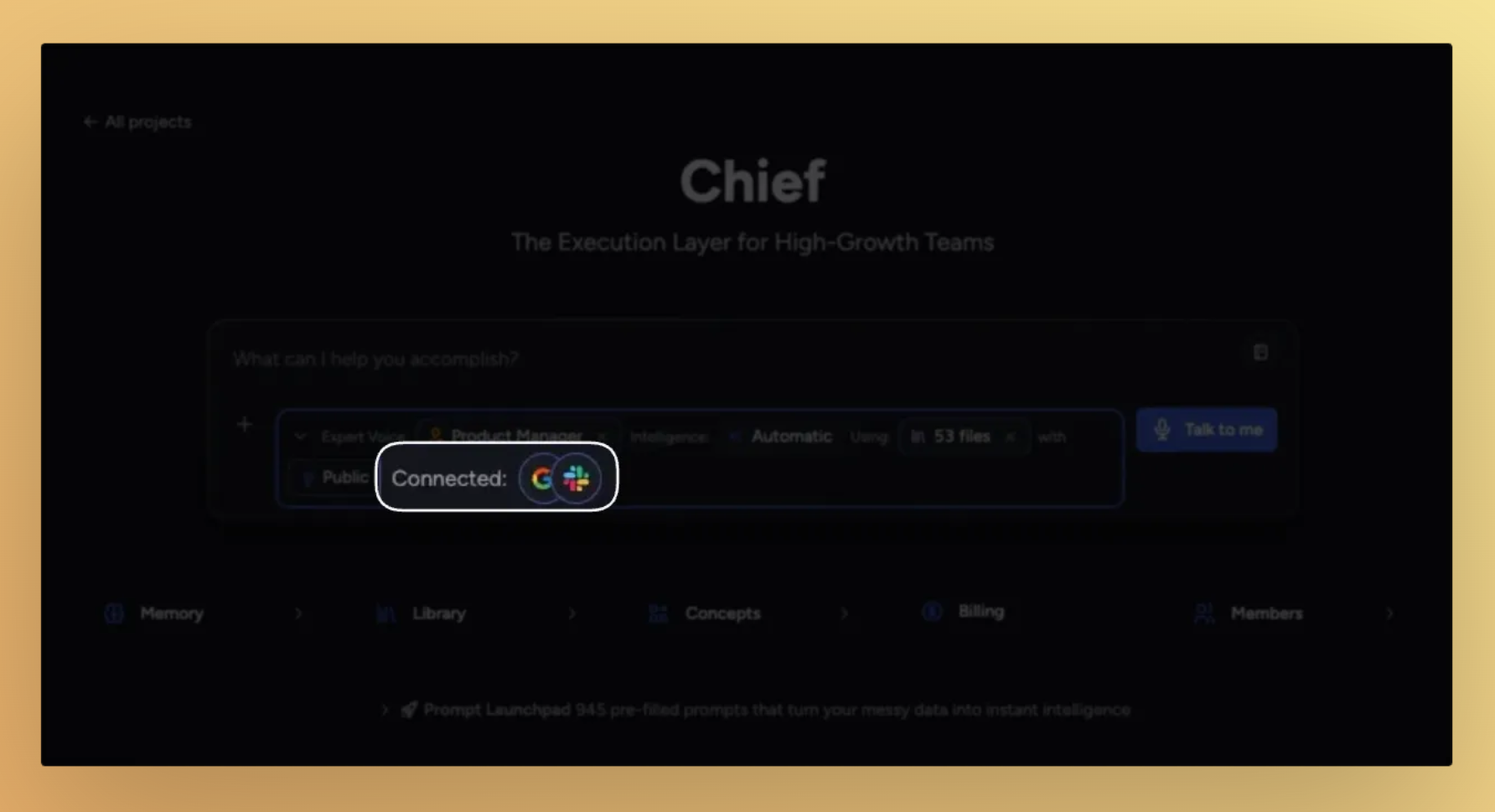
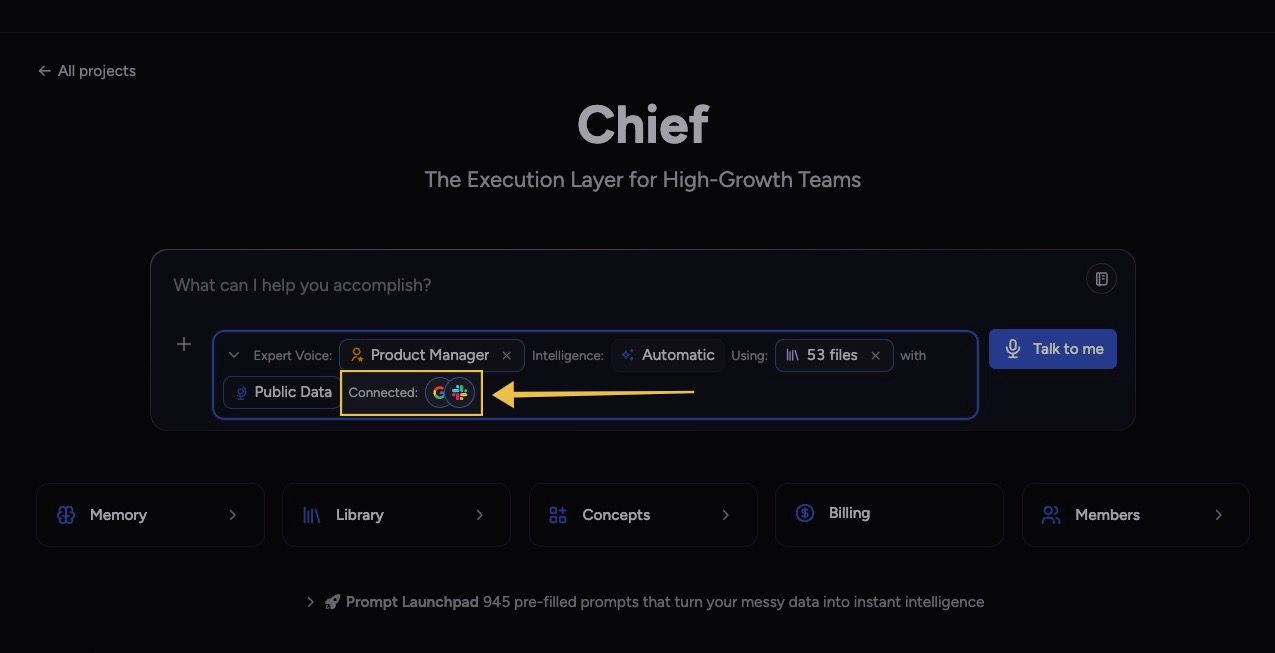
You’ll now see Chief branding in navigation, login/signup surfaces, and key UI moments.
Why this matters:
You’re not learning a new product from scratch.
The experience reflects where the platform is headed.
The brand now better matches how many teams already use it: as an AI chief-of-staff layer for daily execution.
Any questions? read our FAQ here: Storytell -> Chief
The rebrand rollout was shipped so your workflow can continue without migration steps.
What’s improved for users:
No account reset: existing credentials continue to work.
No data re-upload: projects, settings, and history carry forward.
Continuity during switch-over: previous Storytell links continue to route during the domain transition window.
This release also includes a broad UI refresh to align with Chief’s identity:
Updated logos, favicon, and branded visual assets
Refreshed brand colors/gradients across app surfaces
Updated marketing/hero presentation and in-app brand moments
Navigation footer actions now include quick access for:
browser extension info
latest product changes
help/messaging entry points
How Chief will evolve in the coming weeks
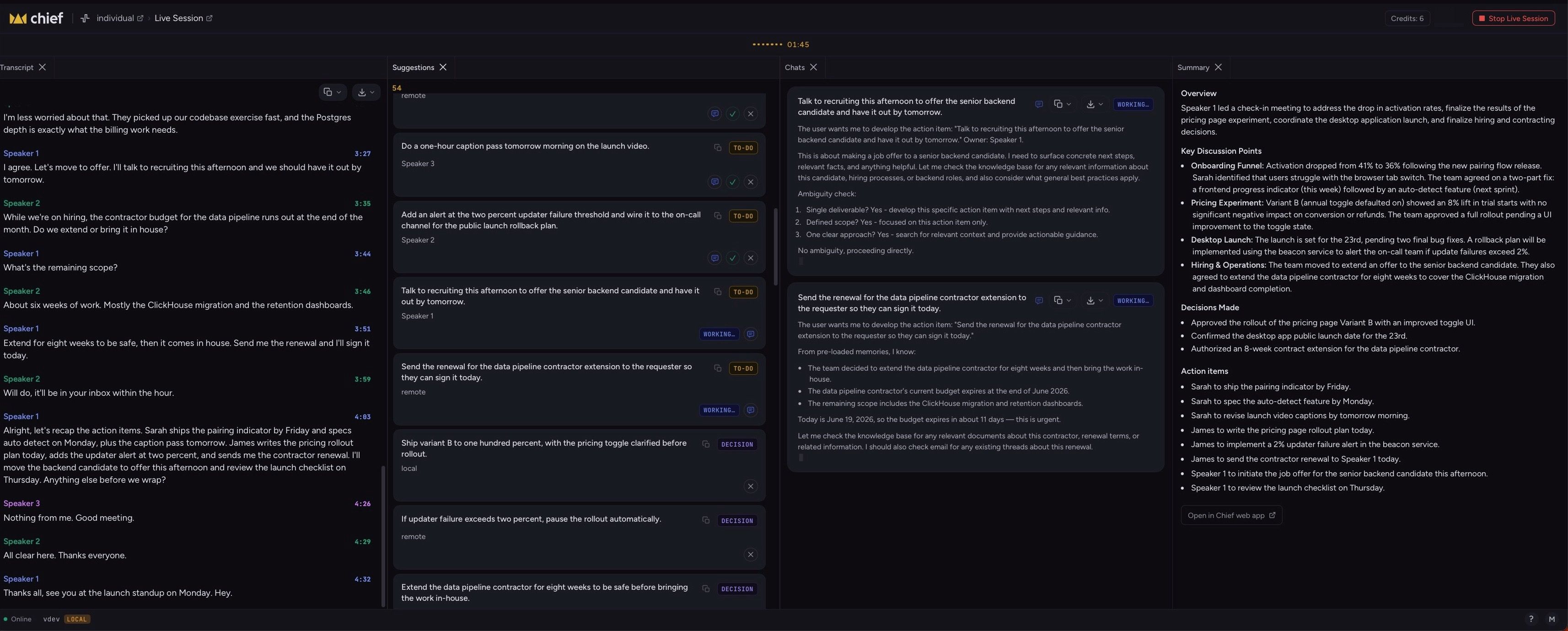
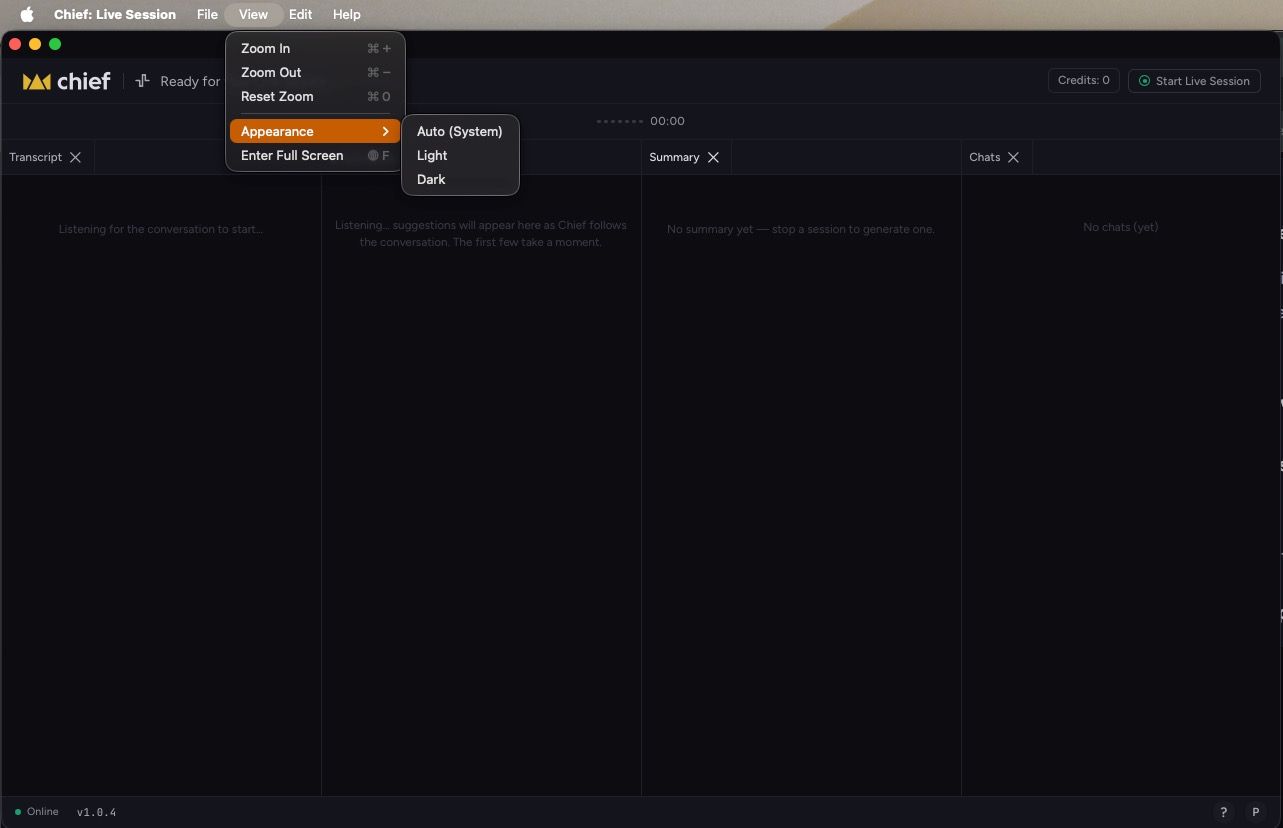
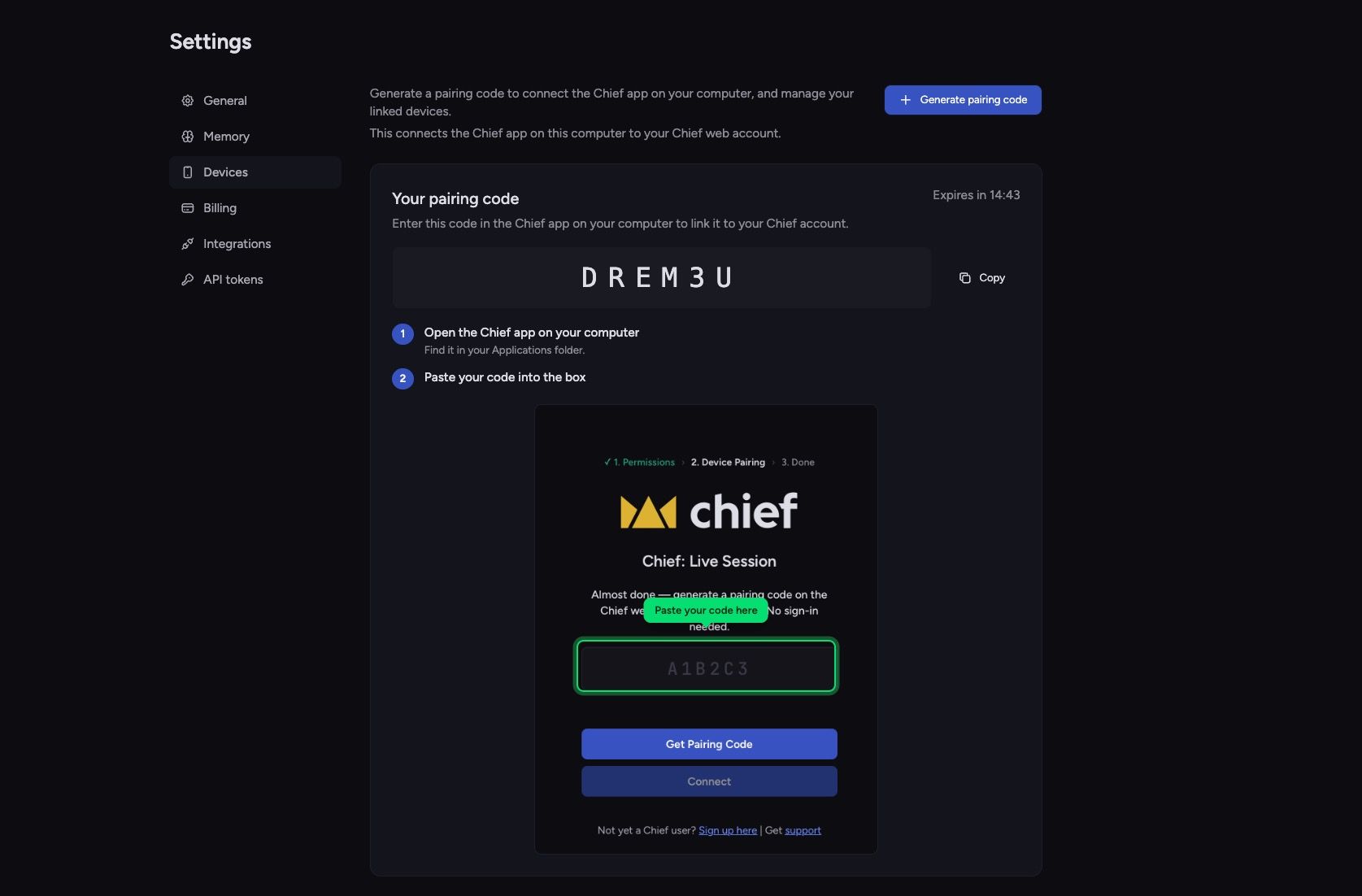
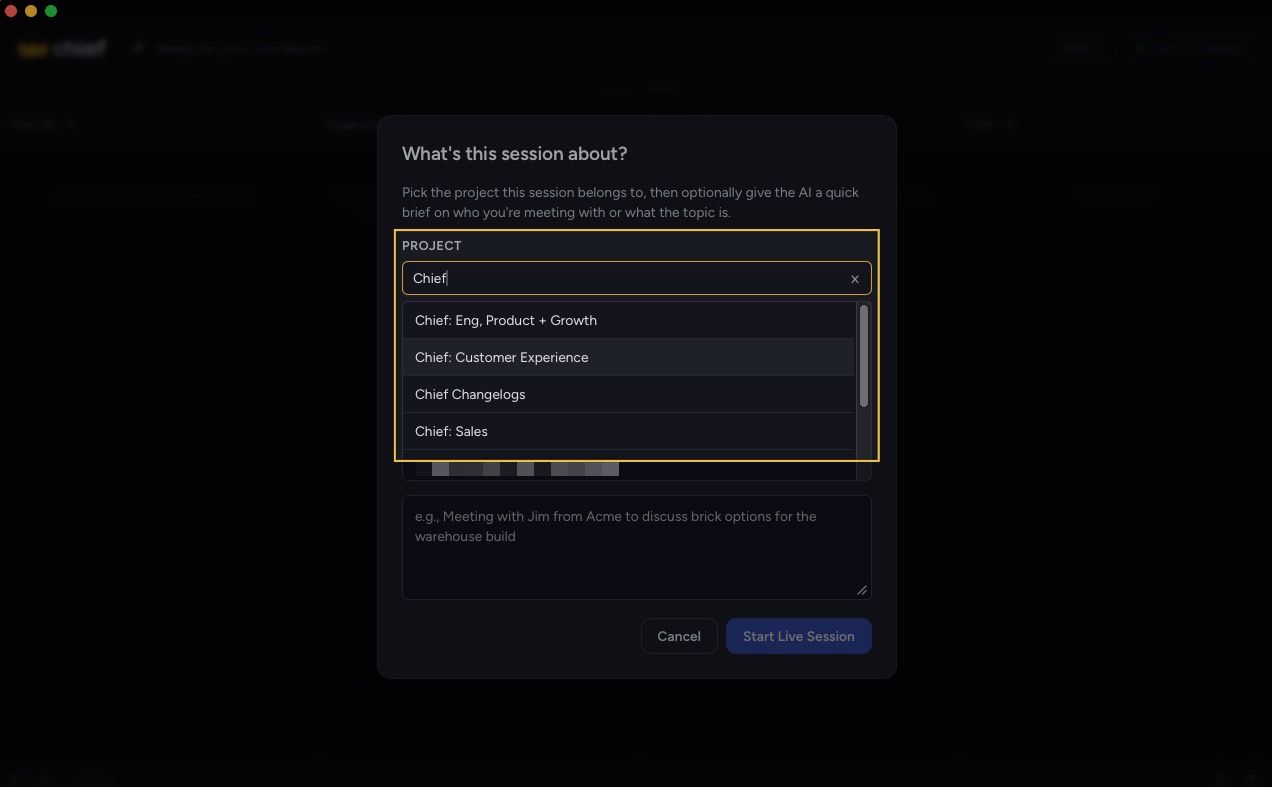
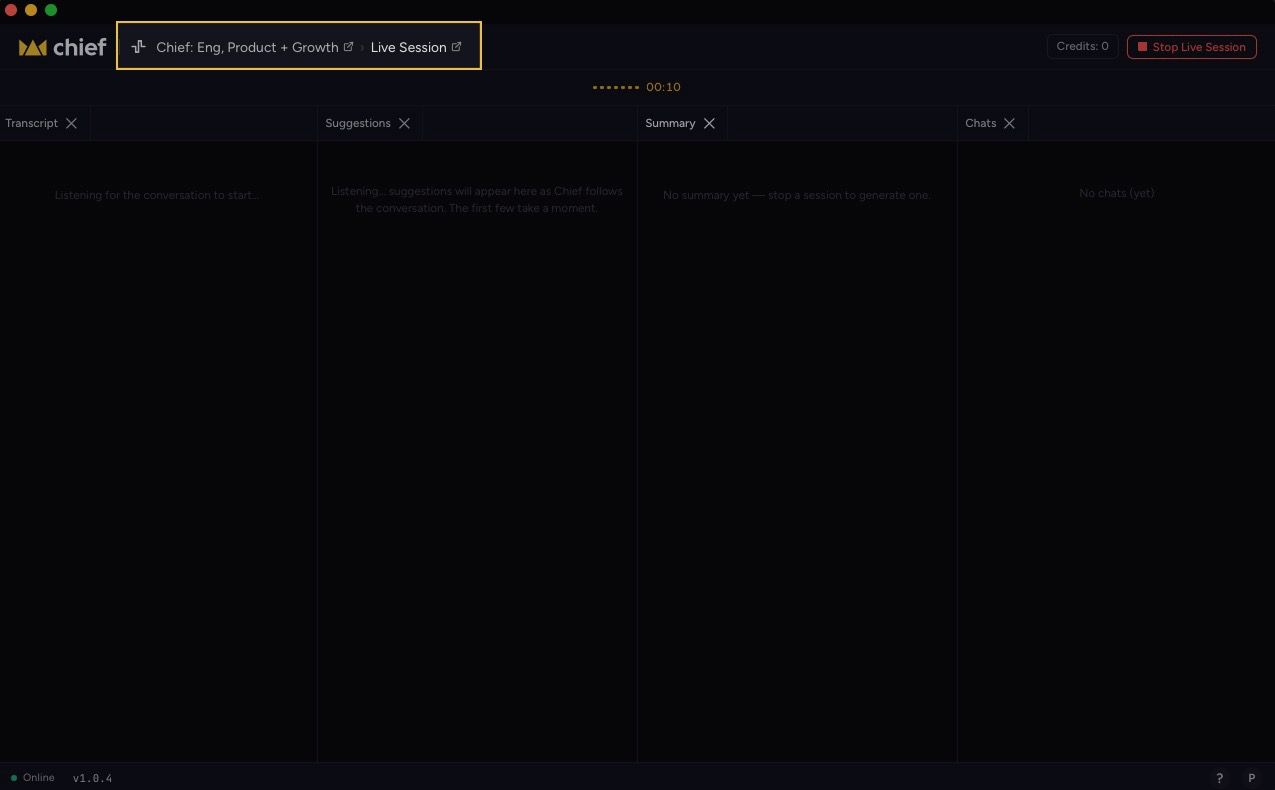
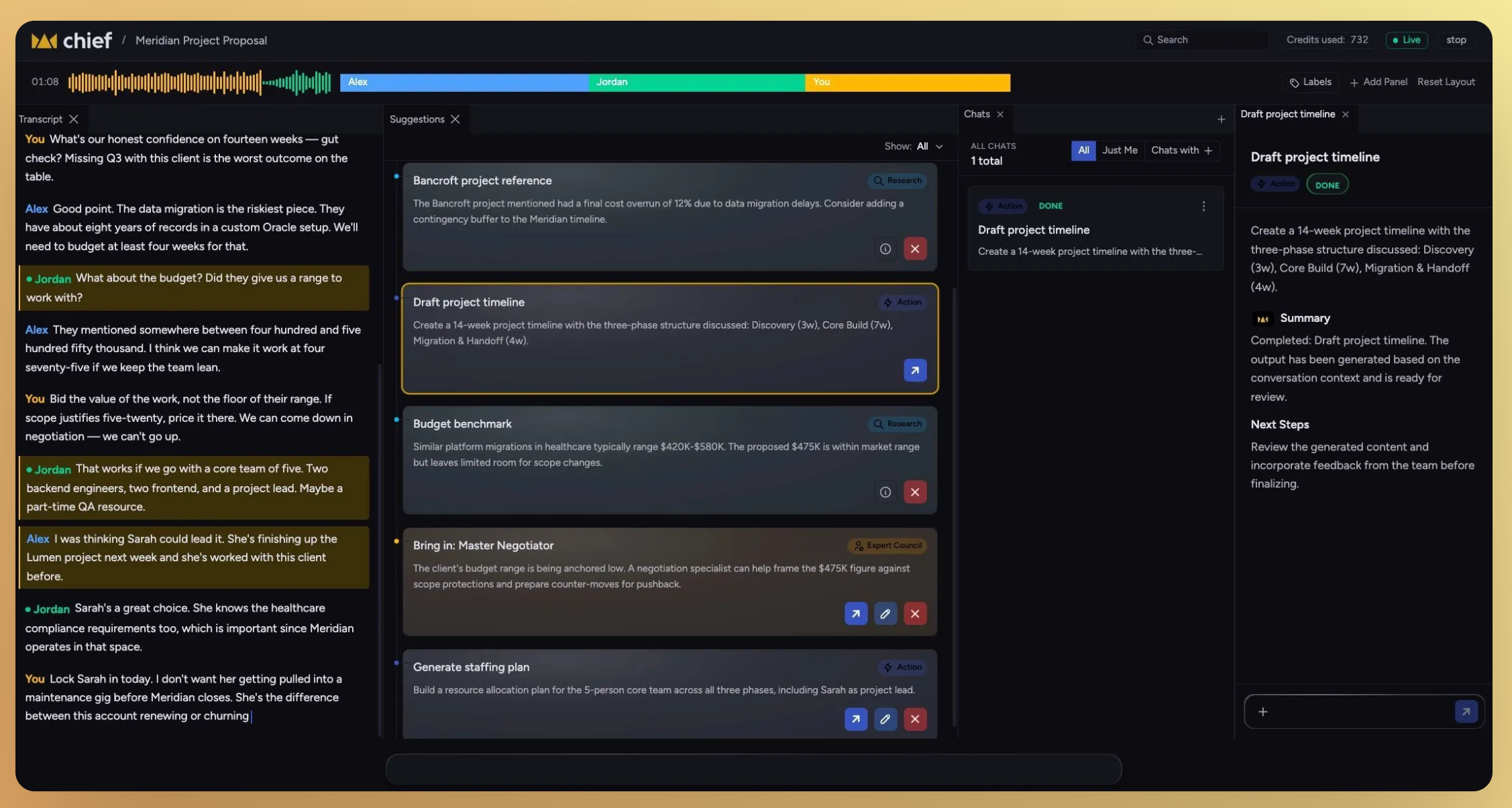
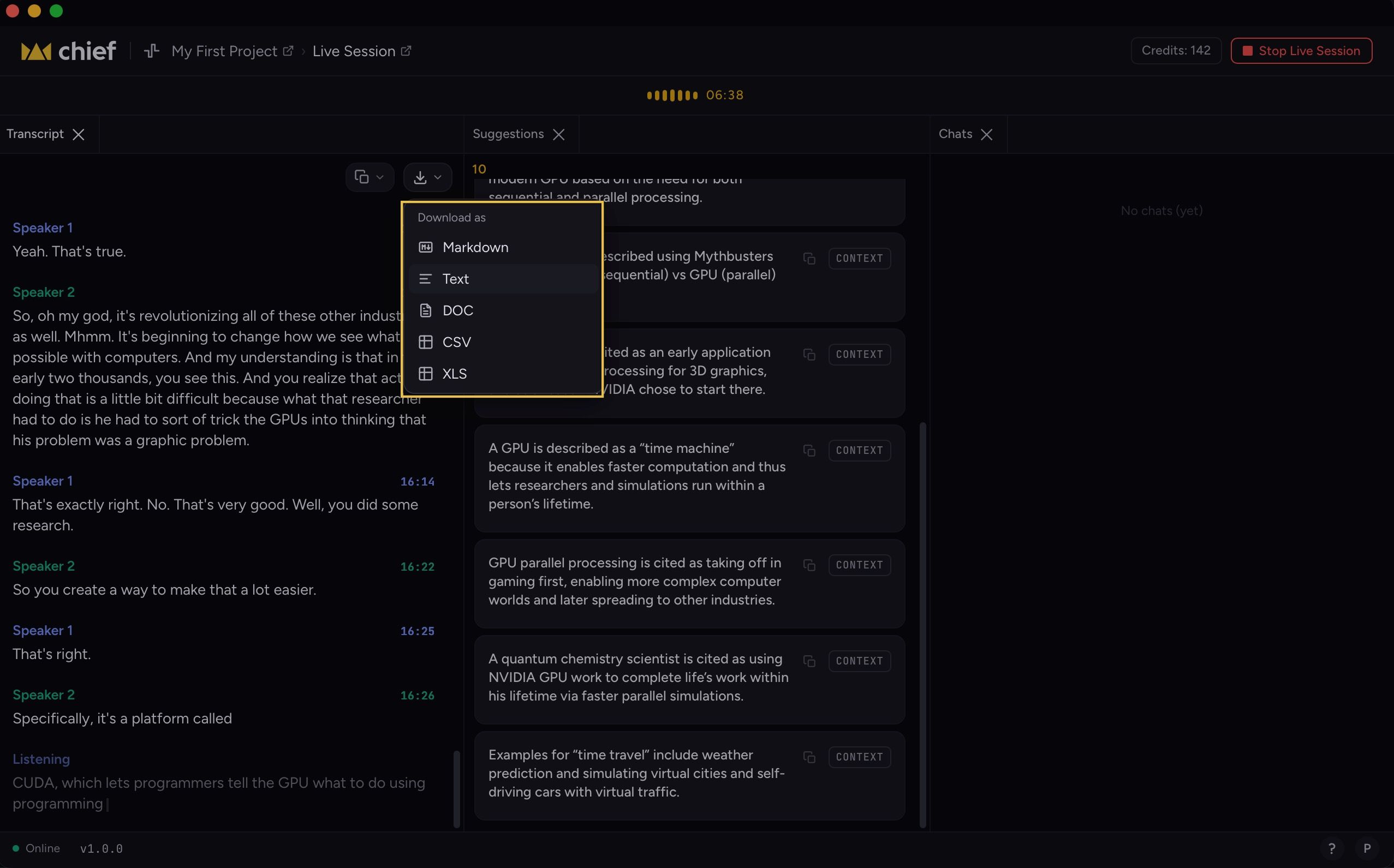
Live Sessions: Chief will listen passively during your calls and meetings — no prompting required. It surfaces real-time action suggestions, expert perspectives, and strategic cues as the conversation unfolds, so you're always the smartest person in the room.
Playbooks: A library of open-source, modular operating frameworks — built on proven methodologies from leaders — that Chief can execute on your behalf. Set the objective, choose the playbook, and Chief runs the coordination.
Voice-first interaction: Instead of just typing into a chat box, you'll also be able to speak your objectives to Chief. State what you need, and Chief organizes context, spins up agents, and surfaces next steps — no keyboard required.
Chief is the next chapter, but your day-to-day should feel familiar from day one. We’re now focused on the next wave already previewed publicly: Live Sessions, Playbooks, and voice-first workflows—all aimed at helping you stay a few steps ahead without adding operational overhead.
April 8th, 2026
New

You shouldn’t have to restate your preferences, your work, or your context every time you start a new chat.
With Storytell Memory, Storytell now carries important details forward so conversations feel continuous, not reset every time.
Over time, it learns how you like to work, what you’re working on, and what actually matters.
Storytell can now:
Remember how you like responses written (tone, format, level of detail)
Keep track of important facts you’ve shared
Carry context across chats and projects
Reduce repetitive back-and-forth
Adapt responses based on your history, not just your last prompt
Think of it as building context once and letting Storytell reuse it intelligently.
Memory runs quietly in the background.

As you chat, Storytell can:
Pick up useful signals (like preferences or recurring instructions)
Organize them into structured memory
Update or replace outdated information
Ignore anything that isn’t worth keeping long-term
When you send a new message, it automatically pulls in the right memories to improve the response.
Memory isn’t all-or-nothing.
You can:
Turn automatic memory collection on or off anytime
View everything Storytell has remembered about you
Edit, delete, or archive memories
Add your own context manually
Manage multiple memories at once (including merging them)
Memory adapts to where context belongs:
User-level → your personal preferences and working style
Project-level → context specific to a project
Organization-level → shared team knowledge (when enabled)
This keeps responses relevant without mixing unrelated context.
Tell Storytell how you want responses formatted once, then stop repeating it
Let it learn your current project instead of re-explaining it every chat
Import structured notes or background to bootstrap your setup
Periodically review your Memory to keep it clean and accurate
Memory makes Storytell feel less like a tool you prompt, and more like a system that actually knows how you work.
April 8th, 2026
New

Storytell shouldn’t feel like a black box.
This release introduces the Command Center and Chat Scope, a new way to control how responses are generated and see exactly what’s influencing them in real time.

A single place to configure everything that affects your chat.
Library (what Storytell knows)
Upload files
Add files to your current chat
Access your Prompt Library
Configure (how Storytell thinks)
Intelligence Level (Auto, Fast, Expert, Research)
Voice (Coach, Teacher, Executive, etc.)
Memory settings (user, project, system)
Account (your setup)
Personalization & settings
Credit balance visibility

A real-time bar that shows what’s actively shaping your conversation.
Voice → current tone/persona
Intelligence Level → reasoning depth + tools
Files in Scope → how many files are being used
Public Data → whether web/external data is on
Every change you make updates instantly—what you see is exactly what the system is using.
No more guessing - Quickly understand why you’re getting a certain response.
Faster iteration - Adjust tone, depth, or data sources without breaking your flow.
More control, less friction - Everything lives in one place—no jumping between panels.
Transparent AI behavior - You can see (and trust) what’s influencing outputs at any moment.
Think of it as a simple loop:
Configure your chat in the Command Center
See those settings reflected in Chat Scope
Adjust in real time as you prompt
The old side panel is gone → replaced by the Command Center
Chat configuration is now centralized
You get a live “source of truth” via Chat Scope
Behavior changes (Voice, Intelligence, Data) are now instantly visible
🚀 Pro Tips
Use Chat Scope as a quick check before sending a prompt, especially for Public Data and Files
Switch Voice mid-conversation to instantly reshape outputs
Drop into Expert or Research mode when answers feel too shallow
Keep your file scope tight to improve response quality and speed
Learn more: Command Center & Chat Scope
March 12th, 2026
Improved

We’ve been working how Storytell decides how to answer. This release introduces an improvement to Chat Modes—so you can choose speed, depth, or full research in one click—and makes the default behavior smarter when you don’t want to think about it at all.
You can now pick how Storytell responds: let Storytell choose, or force Fast, Expert, or Research.
Read more about it here: Chat modes
Until now, the system made a single style of response for every prompt. Sometimes you want a quick answer; sometimes you want the model to really dig in. We’ve added four modes you can switch between right in the prompt bar—no settings dive required.
Auto — Storytell picks Fast or Expert based on your prompt.
Best for most days: you get a sensible default without choosing anything.
Fast — Quick answers, no extended “thinking,” all the usual tools (web search, your Knowledge, charts, etc.) but no agents.
Best when you want speed.
Expert — Stronger models and a bigger “thinking” budget. Same tools as Fast, no agents.
Best for complex or nuanced questions.
Research — Strongest models, highest thinking budget, and agents enabled (e.g. web research).
Best when you want the system to gather and synthesize information across sources.
Who it’s for: Anyone who uses Storytell. Power users get explicit control; everyone else can stay on Auto and get better defaults.
Where to find it: In any project, open SmartChat™ and look at the prompt bar (where you type). Next to the input you’ll see the current mode—Auto, Fast, Expert, or Research—with a dropdown. Click it, pick a mode, and your next message uses that mode. You can change it anytime before sending.

Credits: Fast uses the fewest credits per query; Expert uses more (e.g. 3×); Research uses the most (e.g. 5×). The mode selector shows relative cost so you can decide before sending. Auto only ever chooses Fast or Expert—it never auto-selects Research, so you only pay for Research when you choose it.
March 4th, 2026
New

You shouldn’t have to rerun the same prompt every time a new file is uploaded or remember to generate that weekly summary before a meeting.
With Actions, you can automate repeatable workflows inside a Project. Define when something should run (on a schedule or when new data is added), write the prompt once, and Storytell handles the rest in the background.
Get started at: Actions overview
Run a prompt On a schedule (daily, weekly, monthly) or Whenever there is new source data (when a file is uploaded).
For new uploads, choose:
Run only on the new asset
Run on all matching assets
Turn any completed chat response into a repeatable Action with one click—your prompt is pre-filled and ready to automate.
Actions are project-specific and use your existing Knowledge (Files, Collections, Labels, Concepts) via @mentions and #variables.
View every run in the Actions tab and optionally enable email notifications when a run completes.

Automate repetitive tasks like summarizing new uploads, extracting action items, or generating weekly digests.
The same prompt runs every time—no drift, no missed steps.
Process every new file automatically, or re-run a full project analysis on a schedule.
Actions run whether or not you’re online or inside the project.
Every Action has three parts:
1. Trigger
Choose when it runs:
On a schedule (set hour, day, timezone)
Whenever there is new source data (on file upload)
2. Prompt
Write the instruction Storytell runs each time.
You can:
Use @mentions to include Files, Collections, Labels, Concepts, or Skills
Use #variables to create reusable, dynamic prompts
3. Settings
Add a name and description, configure schedule details (if time-based), and optionally enable email notifications.
When the trigger fires, Storytell runs the prompt automatically. Results appear in Run history inside the Actions tab.
Actions are scoped per project. Each project has its own list.
Permissions depend on role (e.g., Owners and Collaborators can create/edit).
You can Enable or Disable an Action without deleting it.
There is no manual “Run now”—Actions execute only when their trigger fires.
Run history shows inputs, outputs, and any errors for debugging.
Summarize every new file uploaded
Extract action items from meeting notes every Monday
Generate a weekly project digest
Compare each new upload against a Compliance collection
Re-run a “state of the project” summary whenever new data arrives
Analysts processing frequent uploads
Teams that rely on recurring summaries or reports
Project leads who want predictable, hands-off workflows
Anyone looking to reduce manual repetition inside a project
🚀 Pro Tips:
Create an Action directly from a chat where you’ve already perfected the prompt.
@mention Skills (e.g., @Summarizer or custom Skills) for consistent formatting and behavior.
Use Run only on the new asset to keep processing fast and focused.
Disable Actions temporarily instead of deleting them if you’re testing changes.
After editing an Action, check Run history to confirm the next run behaves as expected.
February 20th, 2026
New

The Skills feature lets you create and use reusable instruction sets that guide how Storytell approaches specific tasks. Apply Skills in chat to get consistent summaries, fact-checking, research, and writing your way.
Learn more at: Skills
@mention a Skill in chat: Type @ in the prompt bar, select a Skill from the list, and Storytell applies it to that message.
Automatic activation: Storytell can automatically activate a Skill when your prompt matches its purpose (e.g., “summarize this”).
Create custom Skills: Use the Skill Creator in chat or the Skills page to define new Skills, save to your account (User) or project (Project), and refine as needed.
Built-in Skills: System Skills like Summarizer, Fact Checker, Editor, and Deep Researcher are ready to use; enable or disable them for your workflows.
Consistency: One Skill ensures the same style and process every time.
Control: Choose which Skills are active for a message or let Storytell decide automatically.
Customization: Build Skills for your personal workflow or your project team.
Clarity: See which Skill was applied in the response with a Skills block.
Skills have Name, Display Name, Description, Content, Scope, and Category.
Scope options: System (everyone), Project (team), User (only you).
Skills work alongside your Prompt Library, files, Collections, Labels, and tools.
Automatic activation depends on your enabled Skills and your prompt. To guarantee a Skill is used, @mention it.
Learn how to: Create your own Skills
Users who want consistent, repeatable outputs for summarization, fact-checking, research, or writing.
Teams who want shared workflows and aligned results across projects.
Anyone looking to customize Storytell’s behavior without rewriting instructions each time.
🚀 Pro Tips
Combine Skills with #variables and @mentions for flexible workflows.
Save frequently used Skills to User or Project scope to make them easy to access anywhere.
Use automatic activation for quick, hands-free consistency, or @mention to enforce a specific behavior.
February 17th, 2026
New

We’ve heard from teams who spend too much time retyping prompts or digging through chat history to reuse one they wrote last week. Today, we’re solving that problem.
Get Started at: Prompt Library
The Prompt Library lets you save prompts once, reuse them anywhere, and manage them in one central place. Run analyses, generate summaries, or ask complex questions without retyping, hunting through chats, or losing consistency.
For analysts and researchers: Stop recreating the same queries. One prompt works across files, collections, and projects.
For team leads and knowledge workers: Keep your team aligned with consistent templates. Use @mentions and template variables (#variables) to make prompts adaptable for any dataset or context.
For recurring workflows: Save time and avoid errors by reusing proven prompts for weekly reports, client summaries, or multi-project analyses.
Opening the Prompt Library takes just a click:
From the prompt bar: Click the book icon next to the scope pill.
From the side panel: Open the “Powering This Chat” panel and select the Prompts tab.
Once open, you can:
Create a new prompt: From scratch, or pre-fill with text already in your prompt bar.
Save prompts from chat messages: Preserve @mentions and #variables for later reuse.
Apply a stored prompt: Click to load it into the prompt bar, fill in variables, adjust @mentions, then send.
Star: Mark favorites for quick access.
Edit: Update names, descriptions, or text as workflows evolve.
Delete: Remove outdated prompts to keep your library tidy.
🚀 Pro Tips
Combine @mentions with #variables to make one prompt work across multiple datasets or scenarios.
Use Dropdowns, File Pickers, or Record Audio variables to make prompts flexible for different inputs.
Star key prompts to always have your go-to templates at the top of the list.
Once saved, prompts can be applied anywhere:
Reference them in any chat or datasets.
Adapt them with variables and @mentions for different files or contexts.
Streamline recurring workflows, keep outputs consistent, and make your team’s knowledge reusable.
Try it out: Open your Prompt Library and save your first prompt today. We’d love to hear how it speeds up your workflow.
February 9th, 2026
New
Improved

Starting from a blank prompt is officially optional.
We’re introducing Prompt Launchpad, a curated library of 1,659 pre-filled, expert-designed prompts you can run in one click to turn your data into real intelligence, fast.
Instead of guessing how to phrase the “right” question, Prompt Launchpad gives you proven prompt templates organized by role, task, and use case. Pick a prompt, fill in a few variables, and get high-quality results instantly.
Learn more in the documentation: Prompt Launchpad: 1,659 Ways to Transform Your Data Into Intelligence—Instantly
Faster time to insight: Skip prompt trial-and-error and get structured, professional outputs right away.
Role-aware results: Prompts are tailored for executives, analysts, writers, researchers, and more, so outputs match how you actually work.
Consistent quality: Every prompt follows best practices in prompt design, so results are reliable and reusable.
Easier onboarding: New teammates can jump in and get value without learning prompt engineering first.

Open a new chat in your default project (My First Project)
Browse or search prompts by persona or task
Click a prompt card, fill in a few highlighted variables, and submit
Refine, rerun, or fork the conversation as needed
You can also share direct links to persona-specific prompt collections, making it easy to point teammates to prompts designed just for them.
Prompt Launchpad helps you move from “what should I ask?” to “here’s the answer” in seconds.
February 7th, 2026
New

You can now record audio using the Record option in the upload panel and add it to your project. This makes it easier to capture meetings, interviews, or quick voice notes and bring them into Storytell without recording elsewhere first.
Get started at: Record and upload audio directly to Storytell
Record from the Upload Panel: Use the Record option to capture audio using your device’s microphone and save it to your project.
Microphone Permission via Browser: Storytell uses your browser to access your device’s microphone. If you haven’t already, your browser will prompt you to allow microphone access.
Manual Upload After Recording: After you finish recording, you’ll need to confirm and upload the recording for it to be added as an asset.
Recording and uploading audio is now a single, streamlined flow. You can capture audio in the moment and intentionally upload it to Storytell when you’re ready.
Your browser must be allowed to access your device’s microphone
Recordings are not uploaded automatically—you’ll need to click upload after finishing the recording
While recording, avoid navigating around Storytell to prevent interruptions
If you exit a recording accidentally, you can recover it by reopening the Upload panel and selecting Record audio
Users capturing meetings, interviews, or voice notes
Teams working asynchronously with recorded context
Anyone who wants a simpler way to get audio into Storytell
February 5th, 2026
New

Storytell now includes the Scout tool, a simple way to find email addresses for people you need to reach. To get results, you need to explicitly tell Storytell to find an email address.
Get started at: Scout Tool
Scout tool: Ask Storytell to find an email address by name or profile URL. Scout runs queries automatically and presents results clearly in your workspace.
LinkedIn and company searches: Use LinkedIn profile URLs or company names to locate key contacts, including executives or other decision-makers.
Intelligent queries: The tool uses smart query logic to decide the best approach, combining multiple sources to improve accuracy.
Integrated research: This doesn’t just find emails, it can also surfaces what the person’s top current priorities likely are, using public data sources.
Workspace Integration: Found emails and insights can be referenced in your Projects, added to Collections, or used in conversations without leaving Storytell.
Try it with 1 click: Find the email address for someone and learn their priorities
Finding the right contact no longer requires bouncing between LinkedIn, company websites, and guessing email formats. Scout saves time and also gives context about the person’s current priorities, so you can focus on meaningful connections.
Sales, business development, and networking teams
Recruiters and talent acquisition teams
Researchers and outreach-focused users