June 8th, 2026
New
Improved
Fixed

The headline for this stretch is a public API β teams and power users can now build on top of Chief directly. Alongside that, a round of fixes cleaned up some rough edges that had been trailing for a while.
Public API with personal access tokens
Copy button on raw text and markdown assets
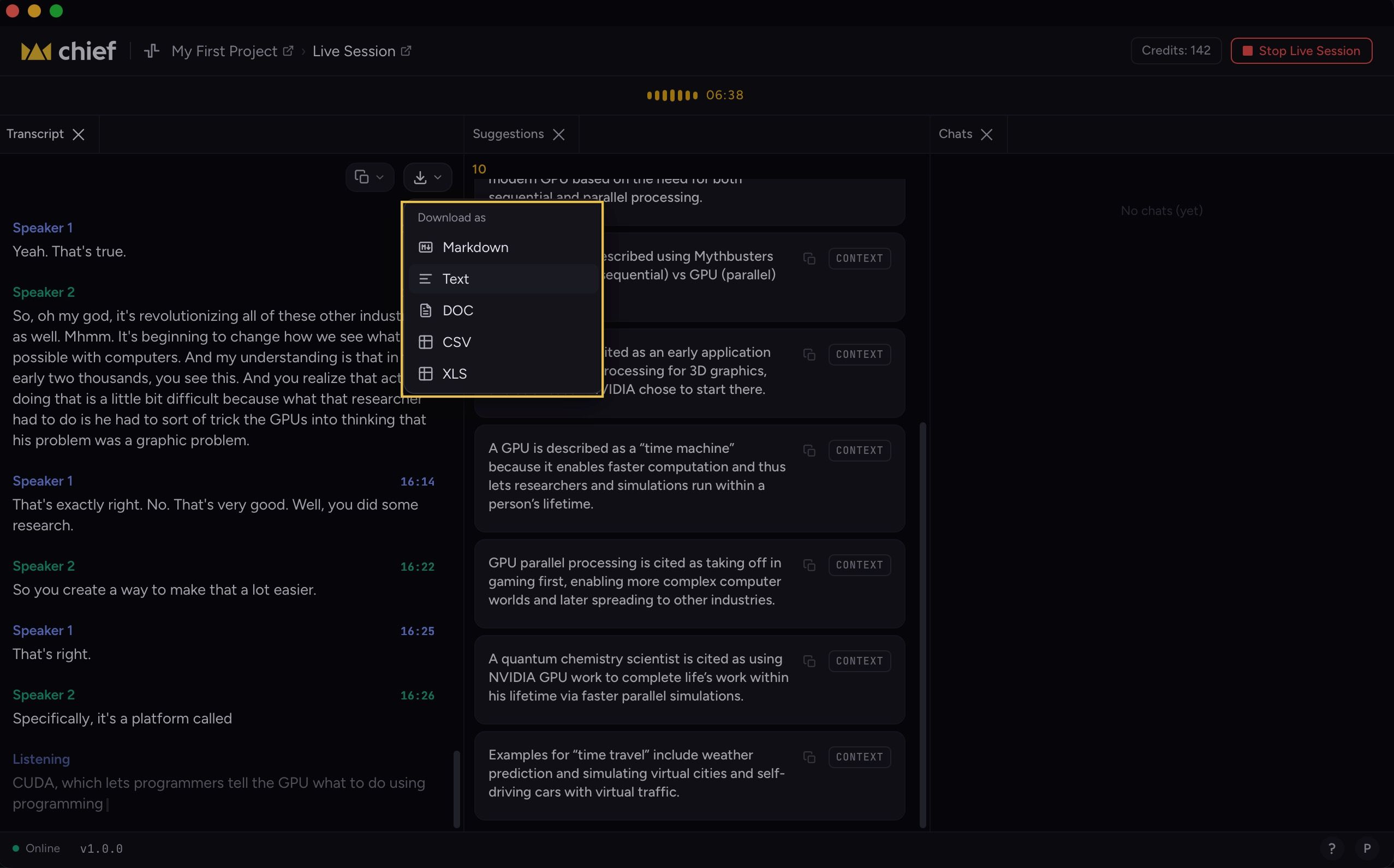
Download any file from its context menu
Markdown spacing now matches Notion
Navigation tabs reordered and retitled
Labels and actions lists now paginate
Pasted-content pills survive copying across chats
Keywords in pasted prompts stay as text, not pills
Deleting a chat while a response is streaming now works
Raw JSON no longer appears in the Chief interface
Actions no longer fail when an item isn't found
Files move correctly while processing is in progress
Upload modal stays open on outside clicks

Chief now exposes a public API. Generate a personal access token in your settings and start connecting Chief to your existing tools, automations, or custom integrations.
Personal access tokens. Create and manage tokens tied to your account for secure, scoped access.
Full OpenAPI documentation. The API ships documented and versioned.

Output formatting follows Notion's spacing conventions. Content you copy from Chief lands cleanly in Notion without manual whitespace cleanup.
Long lists of labels and actions were getting cut off. Both now paginate so every item is reachable.
A one-click copy button now appears on raw text and markdown asset views.
Every file in your workspace has a Download option in its right-click context menu.
Pills added from pasted prompts were being dropped when a chat was copied to another context. They now transfer correctly.
Text pasted into a prompt was being automatically converted into keyword pills. Content you paste now stays exactly as written.
Attempting to delete a thread while Chief was still generating a response would silently fail. Deletion now works at any point.
Tool call output was occasionally surfacing as raw JSON instead of being processed. It's now handled cleanly.
Chief was returning an error when attempting to look up an action that no longer exists. It now handles that case gracefully and continues.
Assets being relocated while still processing could end up in an inconsistent state. File movement now completes cleanly regardless of processing status.
Clicking outside the upload modal was dismissing it before the upload completed. The modal now requires an explicit close action.
May 28th, 2026
New
Improved
Fixed

Run history, at a glance. This update is about reading and acting on your Action runs faster: Labels now show right in the run history list, the panel behaves the way you expect, and a handful of editor snags got smoothed out along the way.
Improved
Run Now moves onto the Run History header
The Run History panel closes on its own
Edit an action straight from its card
Scrolling the actions panel footer is more forgiving
Project homepage cards line up on one row
Fixed
Chat history times show in your local time zone
Pasted links join the line you're typing on
Backspace exits an empty list cleanly
"Clear all" no longer overlaps the prompt bar icons

The run history list and your action cards picked up a round of polish that makes long histories quicker to read and act on.
Labels in the run history list. Each run shows its labels inline, so you can scan many runs without opening each one. Rows show up to four labels, with a +N more toggle when there are more.
Run Now on the header row. The Run Now button now sits on the Run History heading instead of a separate footer.
The panel closes itself. Clicking outside the Run History panel, picking a run, or pressing Esc now dismisses it.
Inline edit on action cards. An edit icon on each action card lets you jump straight into editing.
The footer of the actions panel now accepts scroll input across a wider area, so the list keeps scrolling even when your pointer drifts to the bottom edge.

The project homepage cards β Memory, Library, Concepts, Billing, and Members β now fit on a single row on wide screens, and step down gracefully to three, two, or one column as the window narrows.
Chat history rows were showing server time instead of yours, so a 5:30 AM chat could read as 10:30 AM. Times now render in your browser's local time zone.
Pasting a URL into the prompt now merges it inline with your text instead of dropping it onto a new line.
Pressing Backspace at the start of an empty list item now lifts you back out to a normal paragraph, the way it should.
The Clear all control and the prompt bar's action icons stopped overlapping, so each stays tappable.
May 22nd, 2026
New
Improved

Chat Search now lets you search across indexed conversations using keywords, phrases, and chat titles, making it easier to revisit past work and bring previous context into new chats.
Chat Search now allows you to:
Search across indexed conversations
Find both user prompts and assistant responses
Search using keywords or partial words
Open directly to the matching message in a chat
Search chat titles
@mention previous chats in a new conversation as context
Learn more: Chat Search
Chat Search indexes conversations and allows you to query them using keyword-based matching.
Search covers:
User messages
Assistant responses
Chat titles
Results are ranked based on:
Keyword relevance
Recency (with a boost for newer conversations)
Chat Search uses token-based keyword matching with prefix support.
Each search term matches as a prefix
Multiple words must all appear somewhere in the chat
Search is case-insensitive and punctuation-insensitive
Chat Search does not support:
Fuzzy matching
Synonyms
Stemming
Exact phrase matching
Each result is labeled based on what matched:
Assistant β match found in an AI response
You β match found in a user message
Title β match found in the chat title
Clicking a result opens the chat directly to the matching message.
Chat Search is available through the Search interface in Chief and works across indexed chats within your accessible Projects and organizations.
May 14th, 2026
New
Improved
Fixed

Two important things this release: a new billing system for Project owners, and a workspace-shell tune-up for everyone. Owners can now decide whose credits get drawn against for a Project's usage. Around that, the left sidebar listens to your drag, the chats list compacts when you want to scan more at once, and panel close controls finally land in the same place every time.
New
Decide who pays for a Project's usage
Drag the left sidebar to whatever width fits
Pick how dense your chats list feels
Improved
Close controls now land in the same place every time
Invitations show up without a refresh
Fixed
Secret Link, Email, and Domain invite buttons now actually invite
The actions list no longer flickers when you hover near its edge
The Run history pill stops covering the Share button
Collaborators and readers can see the actions they're allowed to

Each Project now has a billing mode that controls whose credits fund the work inside it β useful when one organization is running the Project but another is footing the bill. Set it from the Project's new Billing page, and switch context from the command palette whenever you need to.
Organization pays. The org that owns the Project covers all usage across every member. This is the new default for newly created Projects.
Each member pays for their own. Every member draws from their own plan as they go β the way billing worked before.
Pick a specific payer. Designate any org you belong to as the payer for everything that happens in the Project, regardless of who's running the work.
Want help getting this set up? Email us at support@chief.bot and we'll walk you through it

A bundle of layout polish around the navbar, side panels, and chats list β all aimed at giving you more control over how the workspace fits your screen.
Drag the left navbar to any width up to 40% of your viewport. Double-click the resize handle to snap back to default. Your width persists across reloads.
Compact / Detailed toggle on the chats toolbar. Compact tightens row padding and hides the audit metadata; Detailed keeps everything visible. Your pick sticks across sessions.
Close controls anchor to the left edge across the app β side panels, Activity timeline, operation cards. Page-provided actions like Chat move to the right. The redundant Back button in the side panel header is gone, and so is the green checkmark on finished operations (the title already says they're done).
When someone invites you to a Project, the new Project now appears in your list automatically β no reload, no logging out and back in. The list streams updates over the live connection.
The three invitation entry points were rendering but not wired up. Clicking any of them now opens the right flow.
Hovering at the right edge of an action row used to oscillate the reveal animation, looping the row open and shut. Hover is steady now, in Chrome, Safari, and Firefox.
When the main content column got narrow, the Run history pill could overlap the Share button in the chat thread header. The sticky header now reserves space for the pill whenever it's visible.
A permissions refactor briefly hid actions from collaborators and readers. They show up again, scoped to what each role is allowed to do.
May 11th, 2026
New
Improved
Fixed

Three small stories add up to a release about not losing your work:
Saved Prompts now layer onto whatever's already in the prompt bar (instead of clobbering it)
Files that hit a credit limit can be retried in place (no more delete-and-re-upload), and
The upload modal hangs around through real work before tidying itself up.
New
One-click access to Saved Prompts from the prompt bar
Try Again for files that ran out of credits
Improved
Saved Prompts append to the prompt bar instead of overwriting
Upload status modal stays visible through real work
Insufficient-credits files behave sensibly in the scope picker
Chats default to showing everyone's work, not just yours
Fixed
Markdown formatting now survives .doc export
"1 file" reads correctly when one file is in scope

What used to be called the Prompt Library is now Saved Prompts throughout the chat and sidebar β clearer wording for the workflow most of you actually do. The bigger change is what happens when you drop one in.
Quick-access icon in the prompt bar. A new notebook icon at the top-right of the chat input opens Saved Prompts directly β no more digging through the plus menu.
Insert appends, not overwrites. Pull a saved prompt into a bar you've already started typing in and it merges onto what's there instead of wiping your draft. An empty bar still inserts cleanly.
Focus jumps to the right place. After inserting, focus and scroll land on the first template variable of the prompt you just added β not somewhere off-screen.

If a file fails to process because your account ran out of credits, you no longer have to delete and re-upload after topping up. A Try Again button now sits next to the Insufficient credits pill β click it, the file re-queues, and you see live feedback as it goes.
Both surfaces. The Try Again button appears on the library card and the asset detail panel.
Live status. Spinner while requeuing, green Queued on success, red Retry failed with the server error in the tooltip if something else goes wrong.
Scope picker handles it cleanly. Rows for insufficient-credits files are no longer selectable in the scope picker, but the same Try Again button lives right inside the row so you can recover the file without leaving the picker.
The upload modal used to auto-minimize on a flat 10-second timer regardless of whether your files had actually finished. Now it stays open while uploads are running and gracefully steps out of the way once the batch is fully ready β minimizes after about a second and a half, dismisses a couple of seconds after that. Minimizing manually still cancels the auto-dismiss sequence, so you can keep the pill on screen if you want it.

The author filter on the Chats page now defaults to All instead of Mine, and the segmented control is reordered to put All first. The sidebar's Recent Chats section drops the mine-only filter entirely and is relabeled simply Recent Chats. Invitees to a shared project no longer land on an empty list.
Downloading a chat to .doc was running everything through a plain-text stripper before wrapping it in paragraphs β headings, lists, emphasis, code, and tables all disappeared. The export now walks the same content structure the chat does and emits semantic HTML, so Word renders the file with the same formatting you see on screen. PDF export was untouched and still works the same.
The collapsed scope summary in the prompt bar was rendering "1 files" β it now switches to the singular form when exactly one file is attached.
May 8th, 2026
New
Improved
Fixed

This update is about keeping you in flow: browse past action runs without leaving chat, see your library files rendered the way they were meant to look, and unstick the ones that got hung up along the way.
New
Browse action runs without leaving the thread
Library files preview the way they're meant to look
Improved
See and unstick files in flight
One click out of fullscreen
Removing an Expert mention leaves a clean sentence
Fixed
The text-selection menu yields when you scroll past it
Pasted text expands without phantom whitespace
Newly uploaded files are searchable right away
@mentioning a file no longer wipes your prompt

A new Run history drawer slides in on the right whenever you're inside an action's execution context, listing recent runs so you can hop between them without breaking out of chat.
Trigger sits in the top-right. Toggle it from the corner; your last open/closed state sticks across reloads.

Markdown files in your library now render as Markdown β both in card thumbnails and in the side-panel preview β instead of an unformatted text blob.
Toggle between formatted and raw. New View as Markdown and View as Plain Text tabs let you flip between rendered and source, with full keyboard navigation.
Plain-text files get the same treatment. .txt files preview through the same renderer, with the raw source one tab away.
The processing-wait modal now lists every upload with its current status and a delete action.
Files stuck in upload or processing for over 3 hours surface a Cancel action in the scope picker.
Failed files surface a Remove action β no more waiting on backend retries.
The presentation overlay now shows a close (X) in the top-right; the redundant Full Screen toggle is gone from the bottom toolbar. Esc still works.
When you remove an Expert from an improved prompt, the surrounding "Use β¦ to" wrapper goes with it, and the surviving verb is capitalized β so you get "Extract the key conceptsβ¦" instead of "Use to extractβ¦".
"Do more with this text" now hides when the highlight scrolls out of the chat viewport and re-anchors when you scroll back. Your selection is preserved across the trip.
Collapsing pasted content into the prompt editor no longer leaves stray top or bottom blank lines, and numbered lists keep their numbering instead of resetting.
Assets that just finished uploading now participate in LLM search instead of waiting for a later state.
Selecting a file from the @-mention picker used to feel like a brief page reload and clear what you'd typed. The prompt editor now holds its place when you pick a file.
May 6th, 2026
Improved
Fixed
Upgraded

The thread this stretch is what happens after Chief gives you something β reports, sub-agent outputs, action results, pasted prompts. Each one now has a clearer path out of Chief: into your library, your clipboard, or whichever file format your next step needs.
If Chief made it, you can grab it.
Sub-agent reports get the same export controls as final answers.
Activity timeline: Edit, Download PDF, Add to Knowledge Base,
Summary and collaboration outputs: Copy + Download menu, with rich text on the clipboard.
Tables in those exports go cleanly to CSV or XLS.
Same actions appear in the side panel when you open a sub-agent doc.
Side-panel reports download in the format you need. PDF, Markdown, plain text, DOC β and CSV / XLS when the report contains tables.
Action outputs save straight to your library. Persisted as library assets with their execution metadata attached.
Pasted text lands in your library β with a custom title. Rename inline and save from the same dialog, no detour required.
One-click copy on every prompt. Skills, Personas, and Actions get a hover-revealed copy button on edit and view surfaces.
Bare URLs in Chief's responses are clickable. No https:// prefix needed β they open in a new tab.
No more collapsible markdown toggles in answers. Responses render as plain semantic headings, easy to read and copy.
Library

A new Compact view. Three-way View control β Expanded, Normal, Compact β collapses each row to a single line.
Toolbar lines up again. Delete, Labels, Copy, Move, Deselect now sit on one row; segmented controls match button heights.
Single-file chat stays single-file. Clicking Chat from an upload-progress toast scopes the chat to just that file.
File pages show processing status. Queued, uploading, processing, indexing, or ready β without bouncing back to the library.
Labels sort by who actually made them. "Created by you," "Created by Chief," and "Mine" now distinguish hand-made labels from auto-generated ones.
Browsable blog with label pills. Click a label on a post to browse all posts under it.
Slides & side panel

Arrow keys flip slides. β and β advance and rewind anywhere a presentation is mounted; Space and Esc stay scoped to fullscreen.
"Open in main view" is back. A diagonal-arrow button on the side-panel header promotes content into the main view.
Settings

Cookie preferences live in Settings. A new "Open cookie manager" entry in Settings β General opens the consent drawer directly.
Email & notifications
Action emails arrive once, not three times. Removed the retry loop that was firing them every two minutes.
Forwarded unsubscribe links can't be abused. Submitting unsubscribe now requires the recipient's email; one-click from native mail clients still works.
Files & sharing
Re-uploaded files become visible to Chief again. Stale asset IDs from deleted versions get dropped from chat scope on load.
Spreadsheet counts and warnings stop double-counting.
The prompt bar and sent-message header count each file once across scope and @mentions.
The "spreadsheet + entire library" warning clears the moment you exclude a file.
Adding spreadsheets through the picker after excluding a file actually commits.
Action-created secret share links show up in the share UI. No more digging through email to recover them.
Newly-made labels show their files immediately. No more empty "Contains 0 Files" right after tagging.
Drafts & prompts
Prompts survive network drops and credit refills.
Drafts persist across submit failures.
Offline submits auto-retry when you come back online.
Refilling credits mid-thread returns you to that thread, not the homepage.
Launchpad templates stop following you between chats. They no longer save into the project's draft slot.
UI polish
Activity timeline expands reliably on Chrome / Windows. First click on the grayscale spectator strip works.
Presentation slides don't collapse after a theme change. Switching themes no longer flattens the slide area to zero height.
Expert Voice Edit and Copy stay visible on long prompts. They stick to the top of the card while you scroll.
Action forms tell you what's missing. Submit with empty required fields scrolls the first invalid field into view and focuses it.
April 14th, 2026
Improved
Upgraded

Our product has evolved into something more powerful than a knowledge platform. It's become an operating system for people who run things. That shift in behavior deserved a name change. Starting next week, we will be rebranding Storytell as Chief (think Chief of Staff).

Youβll now see Chief branding in navigation, login/signup surfaces, and key UI moments.
Why this matters:
Youβre not learning a new product from scratch.
The experience reflects where the platform is headed.
The brand now better matches how many teams already use it: as an AI chief-of-staff layer for daily execution.
Any questions? read our FAQ here: Storytell -> Chief
The rebrand rollout was shipped so your workflow can continue without migration steps.
Whatβs improved for users:
No account reset: existing credentials continue to work.
No data re-upload: projects, settings, and history carry forward.
Continuity during switch-over: previous Storytell links continue to route during the domain transition window.
This release also includes a broad UI refresh to align with Chiefβs identity:
Updated logos, favicon, and branded visual assets
Refreshed brand colors/gradients across app surfaces
Updated marketing/hero presentation and in-app brand moments
Navigation footer actions now include quick access for:
browser extension info
latest product changes
help/messaging entry points
How Chief will evolve in the coming weeks
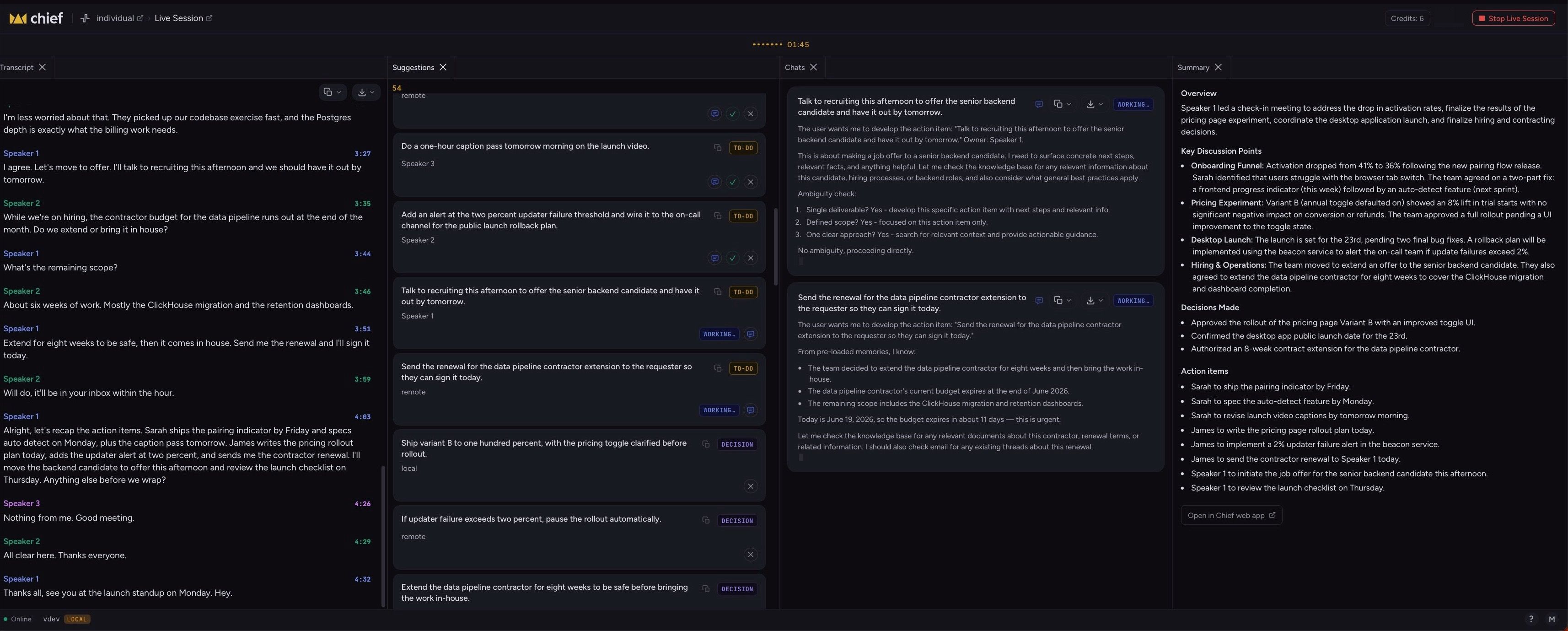
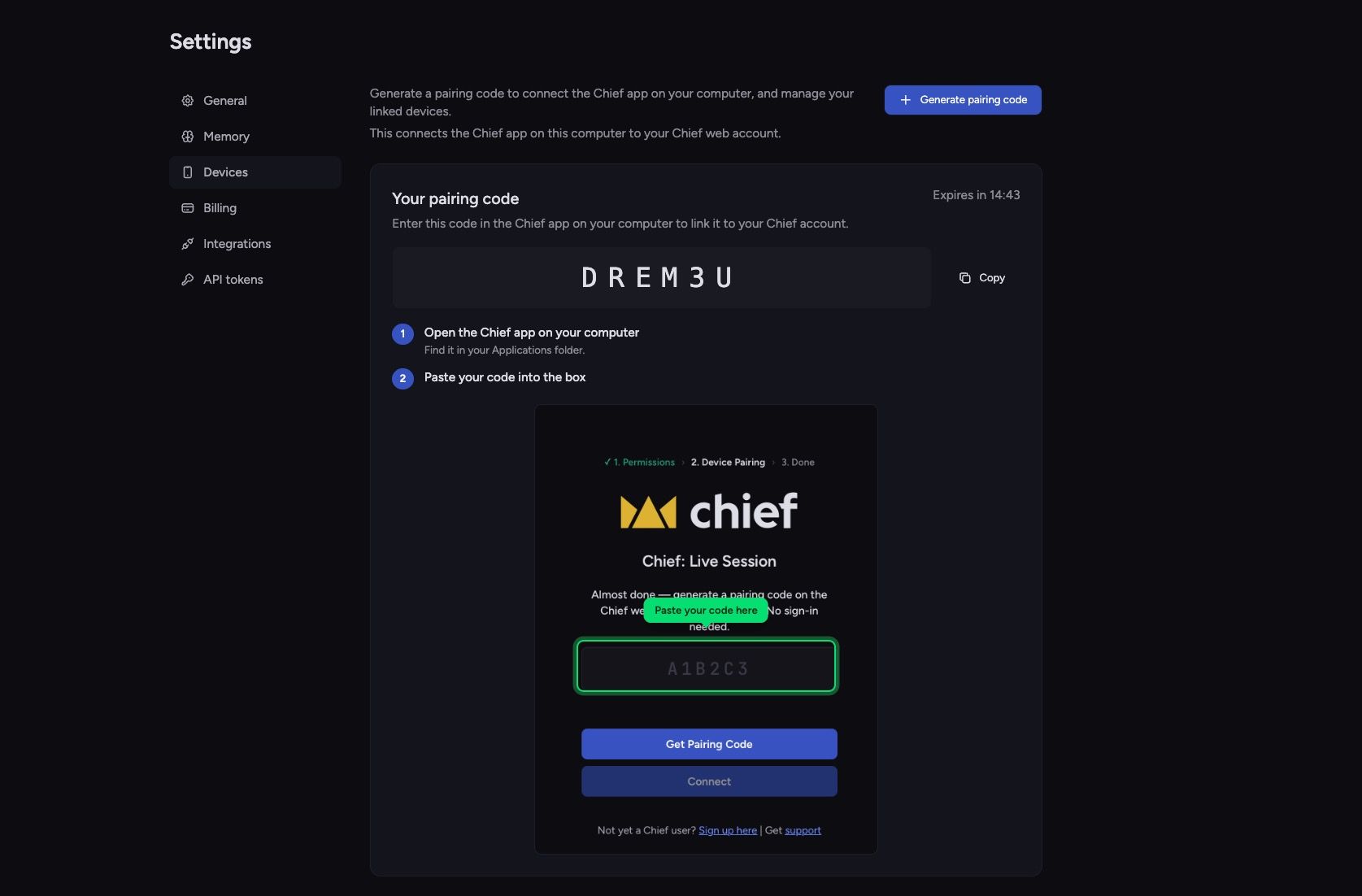
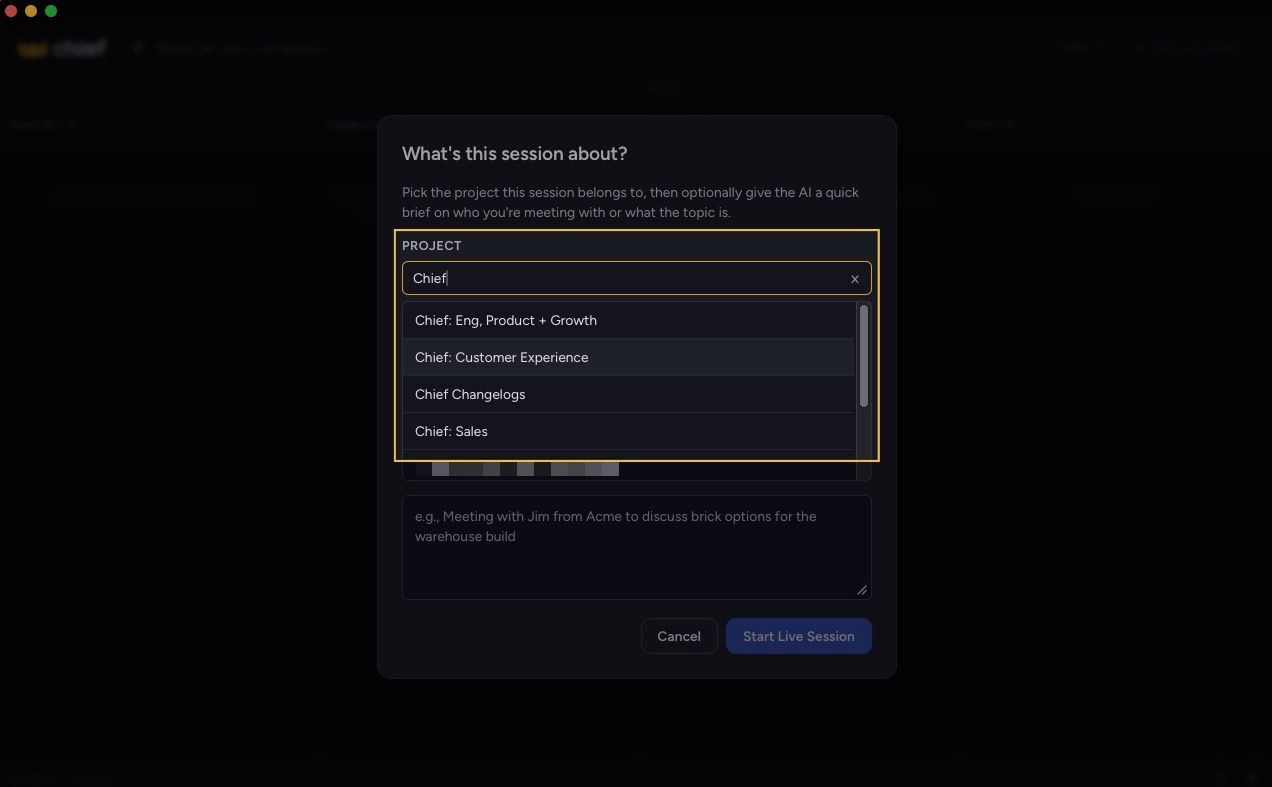
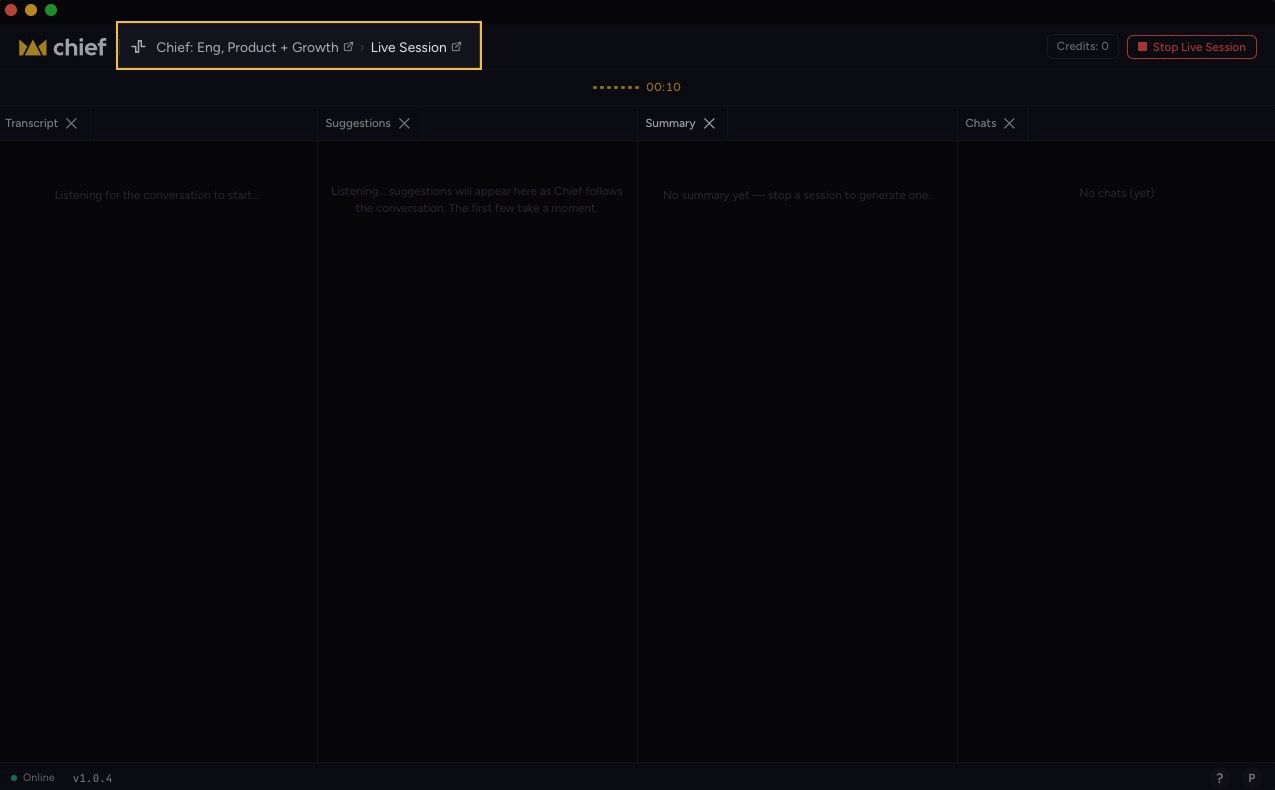
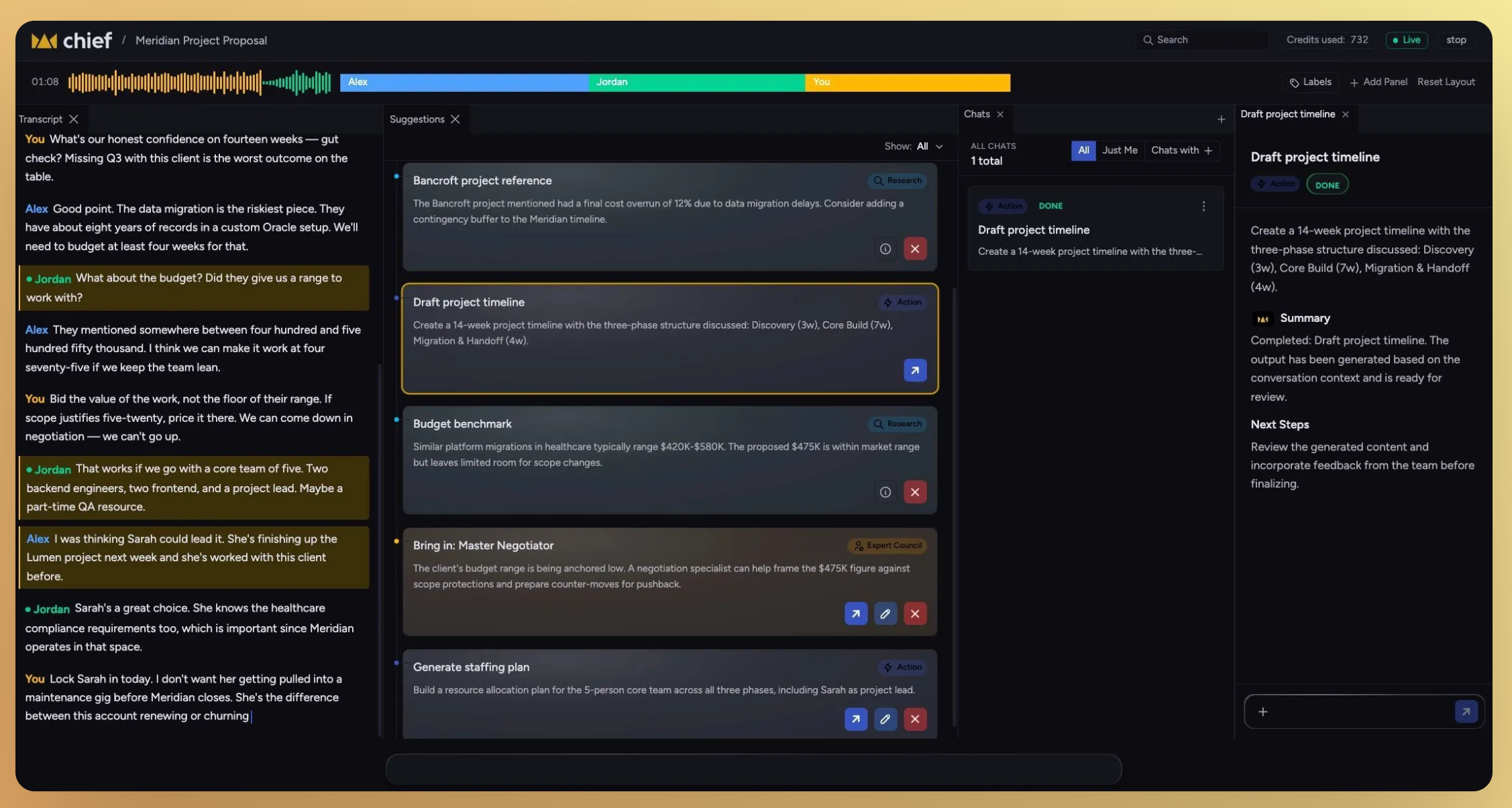
Live Sessions: Chief will listen passively during your calls and meetings β no prompting required. It surfaces real-time action suggestions, expert perspectives, and strategic cues as the conversation unfolds, so you're always the smartest person in the room.
Playbooks: A library of open-source, modular operating frameworks β built on proven methodologies from leaders β that Chief can execute on your behalf. Set the objective, choose the playbook, and Chief runs the coordination.
Voice-first interaction: Instead of just typing into a chat box, you'll also be able to speak your objectives to Chief. State what you need, and Chief organizes context, spins up agents, and surfaces next steps β no keyboard required.
Chief is the next chapter, but your day-to-day should feel familiar from day one. Weβre now focused on the next wave already previewed publicly: Live Sessions, Playbooks, and voice-first workflowsβall aimed at helping you stay a few steps ahead without adding operational overhead.
April 8th, 2026
New

You shouldnβt have to restate your preferences, your work, or your context every time you start a new chat.
With Storytell Memory, Storytell now carries important details forward so conversations feel continuous, not reset every time.
Over time, it learns how you like to work, what youβre working on, and what actually matters.
Storytell can now:
Remember how you like responses written (tone, format, level of detail)
Keep track of important facts youβve shared
Carry context across chats and projects
Reduce repetitive back-and-forth
Adapt responses based on your history, not just your last prompt
Think of it as building context once and letting Storytell reuse it intelligently.
Memory runs quietly in the background.

As you chat, Storytell can:
Pick up useful signals (like preferences or recurring instructions)
Organize them into structured memory
Update or replace outdated information
Ignore anything that isnβt worth keeping long-term
When you send a new message, it automatically pulls in the right memories to improve the response.
Memory isnβt all-or-nothing.
You can:
Turn automatic memory collection on or off anytime
View everything Storytell has remembered about you
Edit, delete, or archive memories
Add your own context manually
Manage multiple memories at once (including merging them)
Memory adapts to where context belongs:
User-level β your personal preferences and working style
Project-level β context specific to a project
Organization-level β shared team knowledge (when enabled)
This keeps responses relevant without mixing unrelated context.
Tell Storytell how you want responses formatted once, then stop repeating it
Let it learn your current project instead of re-explaining it every chat
Import structured notes or background to bootstrap your setup
Periodically review your Memory to keep it clean and accurate
Memory makes Storytell feel less like a tool you prompt, and more like a system that actually knows how you work.
April 8th, 2026
New

Storytell shouldnβt feel like a black box.
This release introduces the Command Center and Chat Scope, a new way to control how responses are generated and see exactly whatβs influencing them in real time.

A single place to configure everything that affects your chat.
Library (what Storytell knows)
Upload files
Add files to your current chat
Access your Prompt Library
Configure (how Storytell thinks)
Intelligence Level (Auto, Fast, Expert, Research)
Voice (Coach, Teacher, Executive, etc.)
Memory settings (user, project, system)
Account (your setup)
Personalization & settings
Credit balance visibility

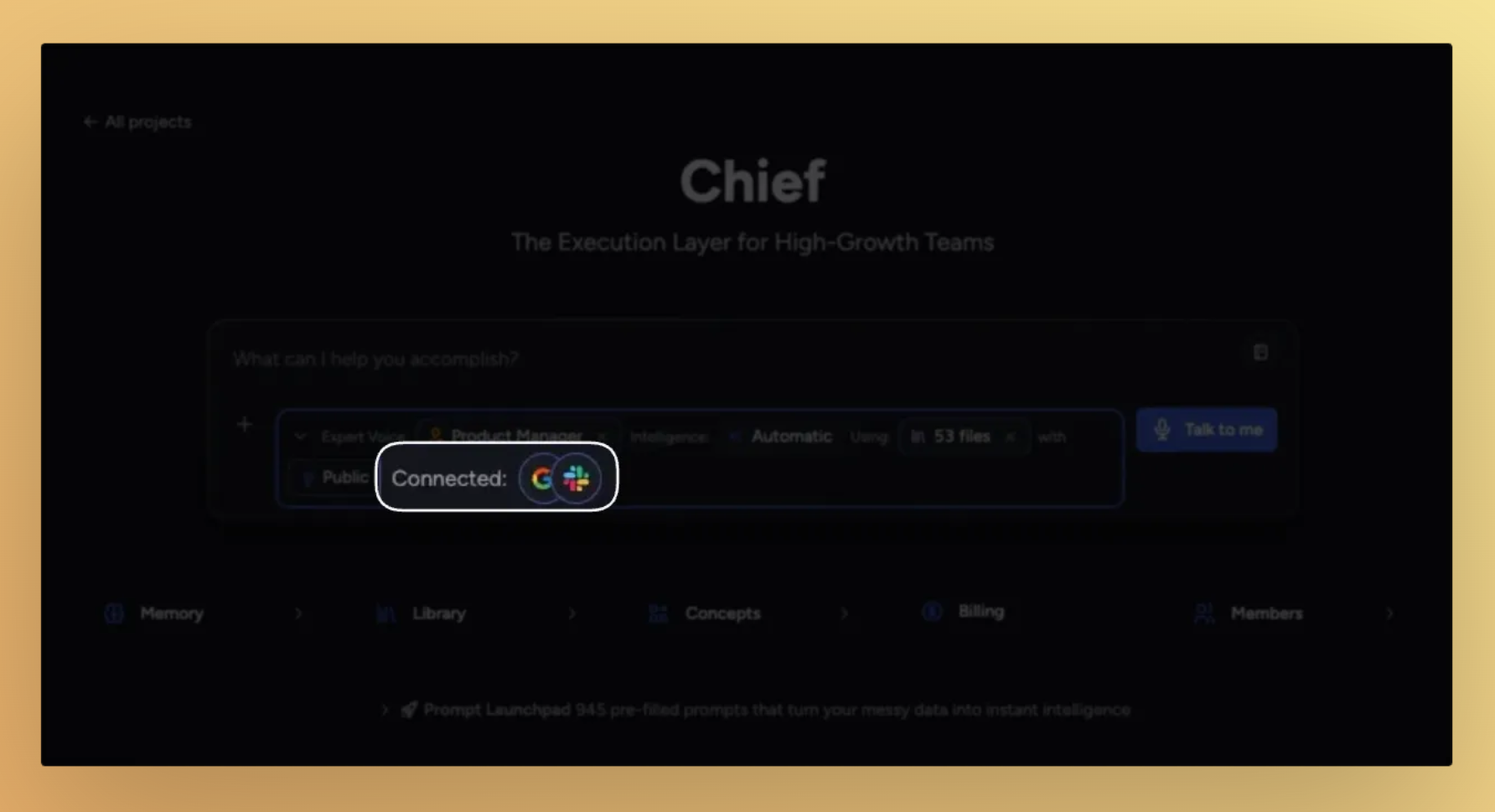
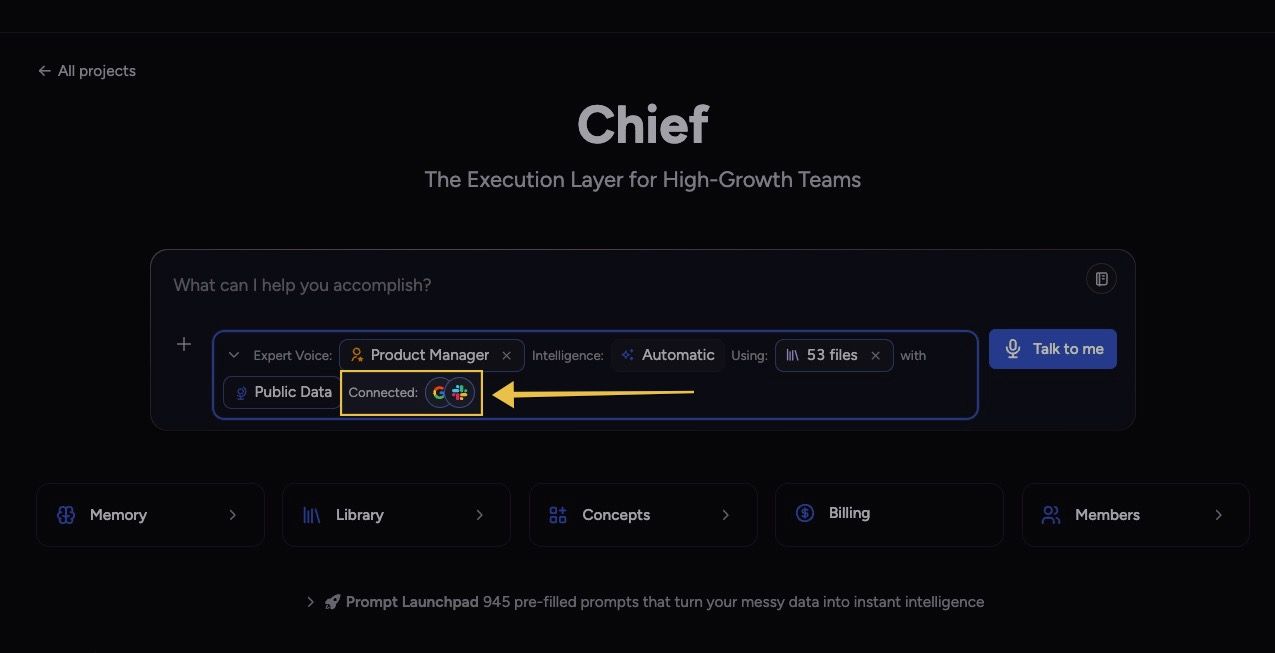
A real-time bar that shows whatβs actively shaping your conversation.
Voice β current tone/persona
Intelligence Level β reasoning depth + tools
Files in Scope β how many files are being used
Public Data β whether web/external data is on
Every change you make updates instantlyβwhat you see is exactly what the system is using.
No more guessing - Quickly understand why youβre getting a certain response.
Faster iteration - Adjust tone, depth, or data sources without breaking your flow.
More control, less friction - Everything lives in one placeβno jumping between panels.
Transparent AI behavior - You can see (and trust) whatβs influencing outputs at any moment.
Think of it as a simple loop:
Configure your chat in the Command Center
See those settings reflected in Chat Scope
Adjust in real time as you prompt
The old side panel is gone β replaced by the Command Center
Chat configuration is now centralized
You get a live βsource of truthβ via Chat Scope
Behavior changes (Voice, Intelligence, Data) are now instantly visible
π Pro Tips
Use Chat Scope as a quick check before sending a prompt, especially for Public Data and Files
Switch Voice mid-conversation to instantly reshape outputs
Drop into Expert or Research mode when answers feel too shallow
Keep your file scope tight to improve response quality and speed
Learn more: Command Center & Chat Scope